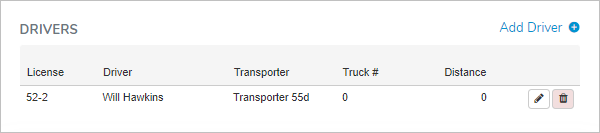
In the Drivers screen you can view details or make changes to the drivers.
Adding a new driver
To add a new driver to the shipment:
1)Click Add Driver to open the Driver dialog, and then complete the following: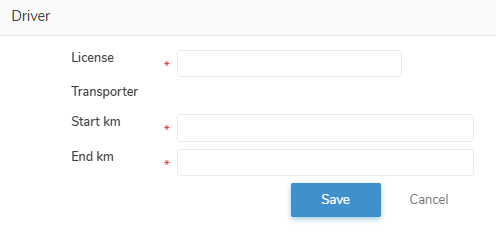
•License*: Type partial or full license number of driver, and then use the scroll bar to move up or down to find and select the desired driver.
•Transporter: Automatically populates with the Transporter company name of the driver.
•Truck #*: Type the first character of the truck number, or click the arrow to find and select the desired truck number.
•Start km*: Type the starting kilometers of the truck odometer.
•End km*: Type the ending kilometers of the truck odometer.
2)Click Save to save the driver details and return to the Shipment page. The driver information displays on the Drivers screen.
– or –
Click Cancel to return to the Shipment page without saving changes.
Updating a driver
To edit or update the driver details of the shipment:
1)Click Edit icon to open the Driver dialog, and then complete the details of the driver as necessary (see Adding a new driver for more information.)
2)Click Save to save the driver details and return to the Shipment page. The driver information displays on the Drivers screen.
– or –
Click Cancel to return to the Shipment page without saving changes.
Removing a driver
To remove a driver from the shipment:
1)Click Remove icon of the name of the driver you want to remove.
2)Click OK to confirm you want to remove this driver. The driver and its detailed information are deleted from the Drivers screen.