To view the Versions of a new entrant type version from the New Entrant Type page:
•Click View icon to open the version of the new entrant type you wish to view.

Adding a new entrant type version
To add a new entrant type version from the Versions screen:
1)Click Add Version to open the Add New Entrant Type Version page.
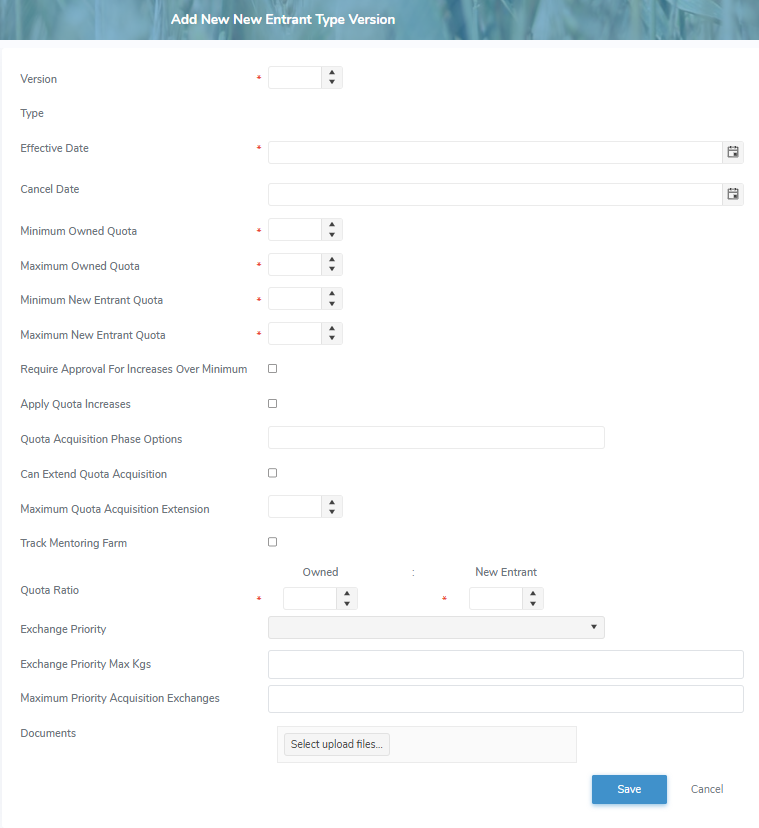
2)Complete the following details:
•Version*: Type a number or click the arrow to select a number for the version.
•Effective Date*: Type the date or click Calendar icon to select the version date becomes effective.
 Note: If the Effective Date is blank the system will try to create a default record. If the default record already exists, the system will prompt the user to enter an Effective Date.
•Cancel Date: Type the date or click Calendar icon to select the version date is cancelled.
•Minimum Owned Quota*: Type the minimum amount of kilograms of BFat owned quota for the new entrant.
•Maximum Owned Quota*: Type the maximum amount of kilograms of BFat owned quota for the new entrant.
•Minimum New Entrant Quota*: Type the minimum amount of kilograms of BFat new entrant quota.
•Maximum New Entrant Quota*: Type the maximum amount of kilograms of BFat new entrant quota.
•Require Approval For Increases Over Minimum: Select the check box if approvals are required.
•Apply Quota Increases: Select the check box if quota increases should be applied.
•Quota Acquisition Phase Options: Click the field and select the phase option (e.g., 12 Months (Existing Facility), 18 Months (New Facility), 24 Months (Extended Timeline - Existing Facility, etc.) that applies.
•Can Extend Quota Acquisition: Select the check box if the quota acquisition can be extended.
•Maximum Quota Acquisition Extension: Type the number of months that a quota acquisition can be extended.
•Can Extend Quota Acquisition: Select the check box if the quota acquisition can be extended.
•Track Mentoring Farm: Select the check box if the mentoring farm is to be tracked.
•Quota Ratio: Type the percentage of owned and/or new entrant quota.
•Exchange Priority: Click the arrow and select the exchange priority (e.g., New Entrant, New Entrant Clawback) that applies.
•Exchange Priority Max Kgs: Type the maximum number of kilograms that a new entrant is given priority to receive on the quota exchange.
•Maximum Priority Acquisition Exchanges: Type the maximum number of successful quota exchanges on which a producer in the acquisition phase can receive priority status.
•Documents: Select upload files to select the document files you wish to add.
3)Click Save to save the new entrant type version and return to the New Entrant Type page.
– or –
Click Cancel to return to the New Entrant Type page without saving changes.
Updating a new entrant type version
To edit or update a new entrant type version from the New Entrant Type page:
1)Click Edit icon to open the Update New Entrant Type Version page.
2)Edit or update the details of the new entrant type version as necessary (see Adding a new entrant type version for more information.)
3)Click Save to save the new entrant type version and return to the New Entrant Type page. The details displays on the Versions screen.
– or –
Click Cancel to return to the New Entrant Type page without saving changes.
Removing a new entrant type version
To remove a new entrant type version from the New Entrant Type page:
1)Click Remove icon of the new entrant type version you want to remove.
2)Click OK to confirm you want to remove this item. The new entrant type version and its detailed information are deleted from the Versions screen.