Multi-factor authentication (also known as two-step verification) adds an extra layer of security to your account. After entering your password, you’ll need to enter a one-time verification code sent to your email or phone (see Log In and Two-Step Verification for more information.)
Updating multi-factor authentication
To edit or update your multi-factor authentication (MFA) from the Security page:
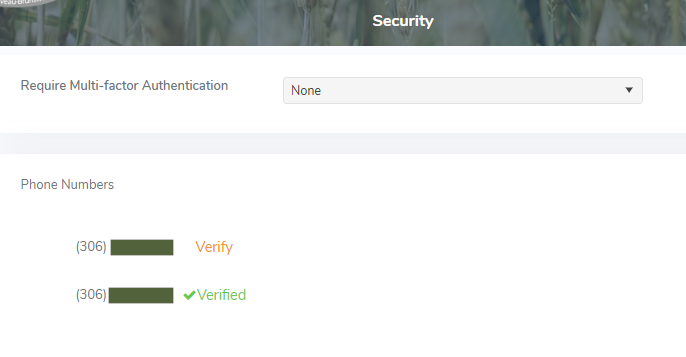
1)Click Require Multi-factor Authentication arrow and choose one of the following:
•Accessing Secure Pages: Applies multi-factor authentication only when accessing secure areas.
•Always: Requires two-step verification every time you log in.
•None: Disables multi-factor authentication for your account.
2)Click OK to confirm and continue. Changes to MFA are applied immediately.
Verifying phone numbers
To verify your phone number for the MFA from the Security page:
1)Click Verify next to the number you wish to use. A dialog appears indicating that a verification code will be sent to your contact.
2)Check your phone for the text message containing the code.
3)Enter the one-time code in the verification screen. Once the code is confirmed, √ Verified will appear next to your phone number.