To view details or make changes to the shipment seal log information in the Seal Logs screen:

Adding a new seal log
To add a new seal log to the shipment from the Seal Logs screen: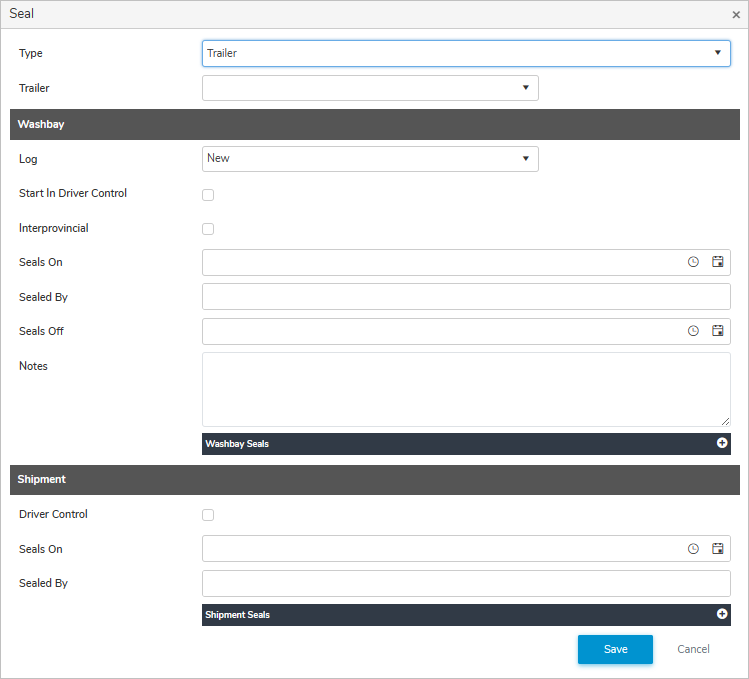
1)Click Add Seal Log to open the Seal dialog, and then complete the following:
•Type: Click arrow to select the unit either Truck or Trailer that you want to add a seal.
•Trailer/Truck: Click arrow to select the Truck number or Trailer number.
 Note: Only trucks that require seals are displayed on the list. If the truck or trailer number is not located in the Truck/Trailer list and requires seals, then contact the Transport Manager to have it added into the system.
Washbay
•Log: Date seals were placed on the unit.
•Start in Driver Control: Click In Driver Control check box if the driver, is remaining with the unit, and therefore seals do not need to be recorded.
•Interprovincial: Click Interprovincial check box if the trailer is out of province.
•Seals On: Type date of the seals are put on or click Calendar icon to select date.
•Seals By: Type the name of who applied the seals.
•Seals Off: Type date of the seals are broken or click Calendar icon to select date.
•Notes: Type any notes regarding the washbay seals.
•Washbay Seals: Type all six digits (000000) of the seal barcode.
 Tip: Click Add icon (+) to add a seal and Remove icon (x) to delete a seal.
Shipment
•Start in Driver Control: Click In Driver Control check box if the driver, is remaining with the unit, and therefore seals do not need to be recorded.
•Seals On: Type date of the seals are put on or click Calendar icon to select date.
•Seals By: Type the name of who applied the seals.
•Shipment Seals: Type all six digits (000000) of the seal barcode.
Tip: Click Add icon (+) to add a seal and Remove icon (x) to delete a seal.
2)Click Save to save the seal log details and return to the Shipment page. The seal log information displays on the Seal Logs screen.
– or –
Click Cancel to return to the Shipment page without saving the details.
Updating a seal log
To edit or update the seal log details of the shipment from the Seal Logs screen:
1)Click Edit icon to open the Seal dialog, and then complete the details of the seal log as necessary (see Adding a new seal log for more information.)
– or –
Click Cancel to return to the Shipment page without saving the details.
Removing a seal log
To remove a seal log from the shipment:
1)Click Remove icon of the trailer/truck number of the seal log you want to remove.
2)Click OK to confirm you want to remove this seal log. The seal log and its details will be deleted from the Seal Logs screen.