In the Shipment Images screen you can view, add, or delete images associated to the shipment.
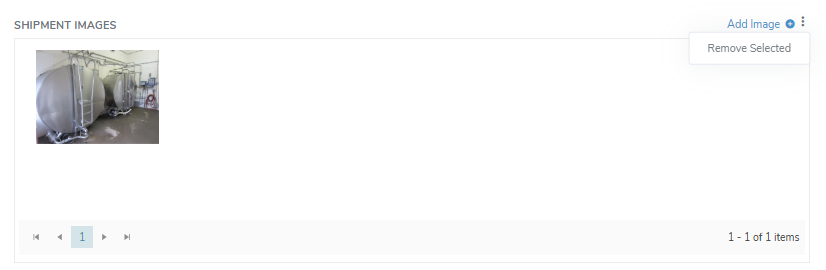
Adding a new shipment image
To add a new image to the shipment:
1)Click Add Image to open the Shipment Image dialog, and then complete the following: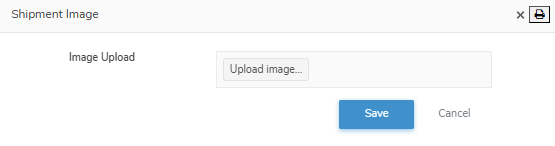
•Image Upload: Click the Upload image to find and select the image file you want to upload.
2)Click Save to save the image and return to the Shipment page. The image displays on the Shipment Images screen.
– or –
Click Cancel to return to the Shipment page without saving changes.
Removing a shipment image
To remove an image from the shipment:
1)Click the image that you want to remove and then click the vertical ellipsis icon ( ) in the top right corner of the Shipment Images screen.
2)Click Remove Selected to remove the selected image. The image is deleted from the Shipment Images screen.