The Handheld Users screen provides ability to view details or make changes to individuals who are responsible for a transporter's handheld device. A handheld user must be added by the Administrator or the Transport Manager to the SaskMilk Milk Payment System before they are able to log into their handheld device. The Transport Manager or the Transporter who is a transport company representative can also update or delete drivers in their Portal.
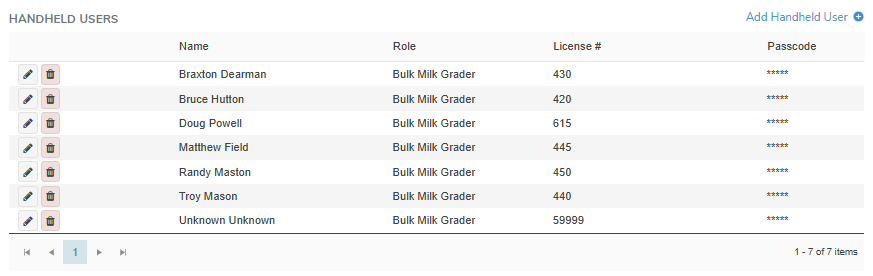
Adding a new handheld user
To add a new handheld user from the Handheld Users screen:
1)Click Add Handheld User to open the Handheld User Information dialog.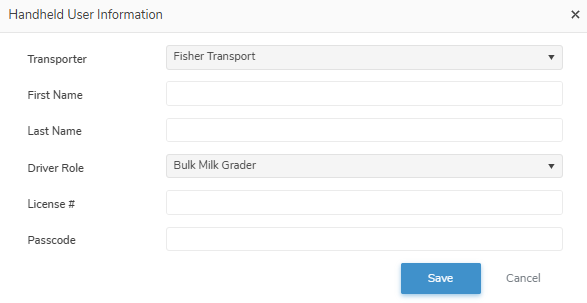
2)Complete the following details:
•Transporter: Type the first letter of the transporter company or click the arrow to display list of transporters, then use the scroll bar to move up or down to find and select the desired transporter.
•First Name: Type first name of the driver.
•Last Name: Type last name of the driver.
•Driver Role: Click the arrow to display list of roles (i.e., Bulk Transporter, Bulk Milk Grader, Wash Bay) then use the scroll bar to move up or down to find and select the desired role of the handheld user.
•License #: Type the license number of the driver. This number is used as the driver's Login Name when logging into their handheld device.
•Passcode: Type four (4) digit numeric passcode. This code is used as the driver's Password when logging into their handheld device.
3)Click Save to save the driver and return to the Transporter page. The driver information displays on the Handheld Users screen.
– or –
Click Cancel to return to the Transporter page without saving changes.
Updating a handheld user
To edit or update the handheld user details of the transporter:
1)Click Edit icon to open the Handheld User Information dialog, and then complete the details of the handheld user as necessary (see Adding a new handheld user for more information.)
2)Click Save to save the handheld user details and return to the Transporter page. The handheld user information displays on the Handheld Users screen.
– or –
Click Cancel to return to the Transporter page without saving changes.
Removing a handheld user
To remove a handheld user from the Handheld Users screen:
1)Click Remove icon of the handheld user you wish to remove.
2)Click OK to confirm you want to remove this handheld user. The handheld user and its details are deleted on the Handheld Users screen.