The Quota Exchange Details screen allows you to add, edit, or delete quota exchange details.
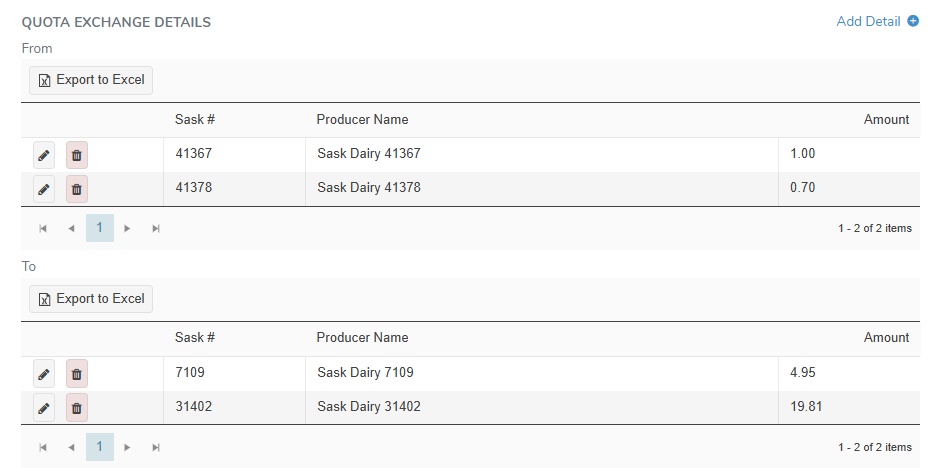
Adding a new quota exchange detail
To add a new quota exchange detail on the Quota Exchange Details screen:
1)Click Add Detail to open the Quota Transfer Detail dialog, and then complete the following:
•From/To: Select the radio button to identify if the quota exchange is to or from the producer being entered.
•Sask #: Type partial or full number of producer, and then use the scroll bar to move up or down to find and select the desired producer.
•Amount: Type the total amount of BFat (Kgs) being transferred to or from the producer.
 Note: A producer can only appear in a quota transfer only once—either as To or From but not both in the same transfer.
2)Click Save to record the new quota exchange detail and return to the Credit/Quota Transfer page. The saved information displays on the Quota Exchange Details screen.
– or –
Click Save and Add Another to save the record and add a new transfer detail.
– or –
Click Clear to remove the selected producer and transfer information without saving the details.
– or –
Click Cancel to return to the Quota Transfer page without saving the details.
Updating a quota exchange detail
To edit or update the details of a quota exchange on the Quota Exchange Details screen:
1)Click Edit to open the Quota Transfer Detail dialog.
2)Update the details of the quota exchange as needed (see Adding a new quota exchange detail for more information.)
– or –
Click Save and Add Another to save the record and add a new transfer detail.
– or –
Click Clear to remove the selected producer and transfer information without saving the details.
– or –
Click Cancel to return to the Quota Transfer page without saving the details.
Removing a quota exchange detail
To remove details of a quota exchange from the Quota Exchange Details screen:
1)Click Remove icon of the quota exchange row you wish to remove.
2)Click OK to confirm you want to remove this item. The quota exchange and all related information will be deleted.
Exporting quota exchange detail results
To export the results from the Quota Exchange Details screen:
•Click Export to Excel to export the details in an Excel format.
 Tip: By default, most downloaded files open in the Internet browser currently in use, usually in a new window or to your Downloads file on your computer.