Adding new special quality test
To add a new special quality test from the Special Quality Search page:
1)Click Add New to open the Special Quality page.
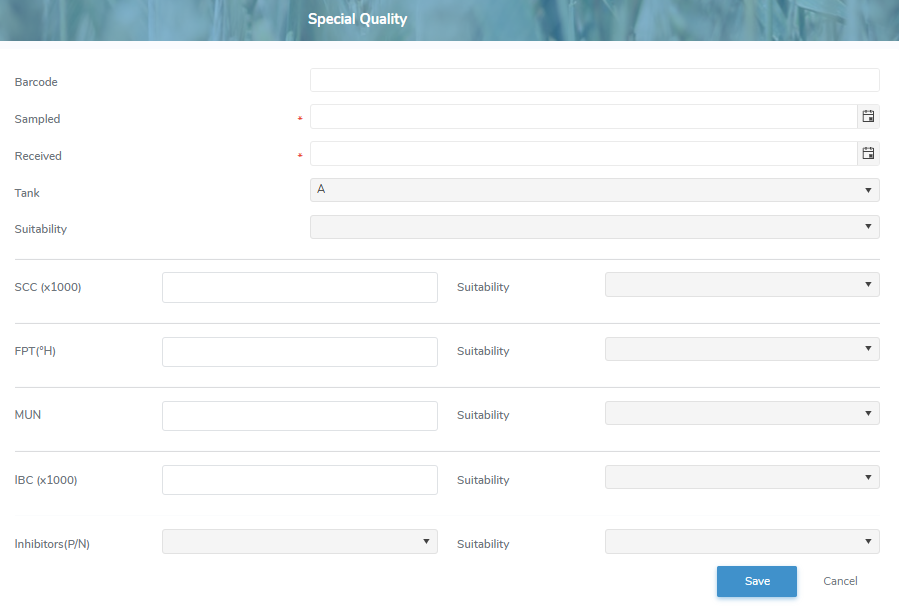
2)Complete the following details:
•Barcode: Type the full barcode of the lab test.
•Sampled*: Type the date or click Calendar icon to select the date of the sample.
•Received*: Type the date or click Calendar icon to select the received date.
•Tank*: Click the arrow to display and select the tank the quality test was taken from.
•Suitability: Click the arrow to display the list of suitabilities, and then use the scroll bar to move up or down the list to find and select a suitability for the lab test if applicable.
 Note: To view the current list of suitability codes go to Admin > Manage Settings > Code Tables and select Lab Test Unsuitable Reason Code.
•Comment: Type a comment for the producer lab test, if applicable.
Select suitability (e.g., Other, Frozen, Out of Range, Not Enough Milk, Shipping Temp, etc.) for each of the following special quality test, if applicable:
•SCC (x1000) / Suitability: Type the measurement value of the somatic cell count.
•FPT: Type the measurement value of the freezing point temperature.
•MUN / Suitability: Type the measurement value of the milk urea nitrogen.
•IBC (x1000) / Suitability: Type the measurement value of the individual bacteria count.
•Inhibitors (P/N): Click the arrow to display and select a positive or negative inhibitor.
3)Click Save. The special quality test details display on the Special Quality Search page.
– or –
Click Save to return to the Special Quality Search page without saving changes.
Updating a special quality test
To update or edit the details of a special quality lab test from the Special Quality Search page:
1)Click Edit icon to open the Special Quality page.
2)Update the details for the special quality test as needed (see Adding a new quality test for more information.)
3)Click Save. A message displays you have successfully saved a lab test and the quality lab test details displays on the Special Quality Search page.
– or –
Click Cancel to return to the Special Quality Search page without saving changes.
Removing a special quality test
To remove or delete a special quality test from the Special Quality Search page:
1)Click Remove icon of the special quality test you wish to remove.
2)Click OK to confirm you want to delete this special quality test. The special quality test and its detailed information are deleted from the Special Quality Search page.
Note: Producer special quality tests can only be removed for the current open payment period.