In the Pickups screen you can view details or make changes to the shipment pickups.
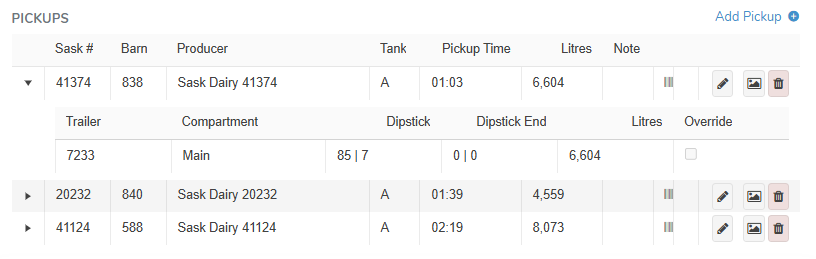
 Tip: To view all the details of a pickup click the arrow to expand the second row of the pickup details you wish to view.
Adding a new pickup
To add a new pickup to the shipment:
1)Click Add Pickup to open the Pickup dialog, and then complete the following:
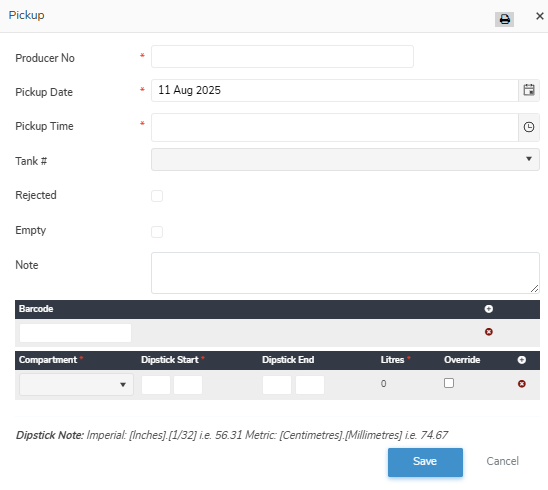
•Sask #*: Type partial or full number of producer, and then use the scroll bar to move up or down to find and select the desired trailer producer.
•Pickup Date*: Automatically populates with the date of the shipment.
•Pickup Time*: Type the time of the pickup.
•Tank #: Type the first character of the tank number or click the arrow to find and select a tank.
•Rejected: Select the check box if the pickup cannot be completed.
•Rejected Reason: Displays when the Rejected check box is selected. Typ the first charater of the rejection reason or click the arrow to find and select the desired rejection reason from the list.
•Empty: Select the check box if the pickup ??
•Note: Type in any comments you may have for the pickup.
Barcode (click + icon to expand the compartment details)
•Barcode: Type all digits and dashes (e.g., 000-A00-0000) of the barcode for the tank sample.
Compartment (click + icon to expand the compartment details)
•Compartment*: Click the Compartment arrow to select a trailer compartment.
•Dipstick Start*: Type the value in imperial or metric measure of the tank.
•Dipstick End: Type the value in imperial or metric measure of the tank.
 Note: No end measure is entered unless: a) The load is to be split between compartments or trailers; or b) There is milk left in the tank after filling the trailer(s)/compartment(s).
Note: Dipstick measures can be recorded in imperial measures such as inches and 32 of an inch (e.g., [inches].[1/32] or 57.31) or in metric measures such as centimetres and millimetres (e.g., [cm].[mm] or 74.67).
•Litres*: Automatically calculated if the tank calibration exists within the Milk Payment System.
•Override: Click Override check box to change the calculated litres of the volume picked up, and then type the number of litres in the Litres box to adjust the litres.
Note: Overriding volume only occurs when the latest tank calibration is not stored in the Milk Payment System.
2)Click Save to save the pickup details and return to the Shipment page. The pickup information displays on the Pickups screen.
– or –
Click Cancel to return to the Shipment page without saving the details.
Updating a pickup
To edit or update the pickup details of the shipment:
1)Click Edit icon to open the Pickup dialog, and then complete the details of the pickup as necessary (see Adding a new pickup for more information.)
2)Click Save to save the pickup details and return to the Shipment page. The pickup information displays on the Pickups screen.
Removing a pickup
To remove a pickup from the shipment:
1)Click Remove icon of the number of the pickup you want to remove.
2)Click OK to confirm you want to remove this pickup. The pickup and its detailed information are deleted from the Pickup screen.