Adding a new entrant type
To add a new entrant type from the New Entrant Types page:
1)Click Add Parameters to open the Add New Entrant Type page.
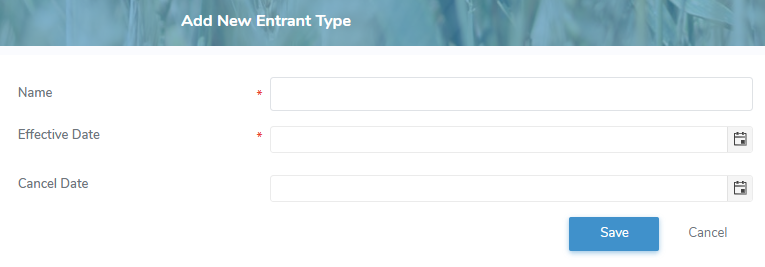
2)Complete the following details:
•Name*: Type a brief name for the new entrant type (e.g., 2024 New Entrant.)
•Effective Date*: Type the date or click Calendar icon to select the new entrant type date becomes effective.
 Note: If the Effective Date is blank the system will try to create a default record. If the default record already exists, the system will prompt the user to enter an Effective Date.
•Cancel Date: Type the date or click Calendar icon to select the new entrant type date is cancelled.
3)Click Save. The new entrant type display on the New Entrant Types page.
– or –
Click Cancel to return to the New Entrant Types page without saving changes.
Updating a new entrant type
To edit or update a new entrant type from the New Entrant Types page:
1)Click Edit icon to open the Update New Entrant Type page.
2)Edit or update the details of the new entrant type as necessary (see Adding a new entrant type for more information.)
3)Click Save to save the new entrant type and return to the New Entrant Types page. The details displays on the New Entrant Types page.
– or –
Click Cancel to return to the New Entrant Types page without saving changes.
Removing a new entrant type
To remove a new entrant type from the New Entrant Types page:
1)Click Remove icon of the new entrant type you want to remove.
2)Click OK to confirm you want to remove this item. The new entrant type and its detailed information are deleted from the New Entrant Types page.