The Publishing the Quota Exchange process finalizes the monthly quota exchange once all errors have been resolved and the exchange is marked Publish Ready. This status confirms that all validations, declarations, and supporting documents have been reviewed and approved, and that no further adjustments are required.
 Note: The quota exchange can only be published if the period is Closed and all quota exchange errors have been resolved or overridden (see Managing quota exchange error messages for more information.)
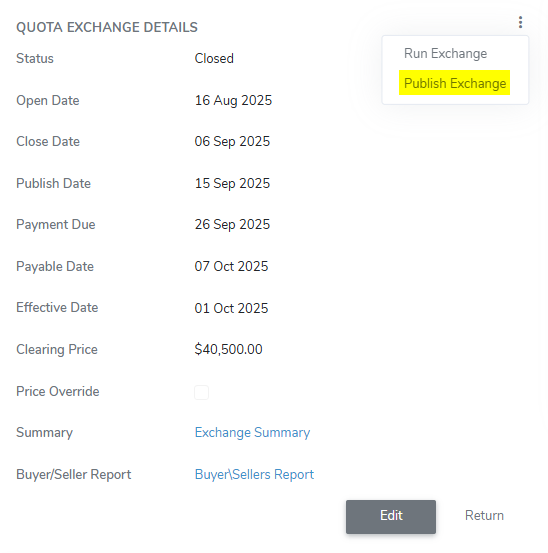
To publish the quota exchange from the Quota Exchange page:
1)Click the vertical ellipsis icon ( ) in the top right corner of the Quota Exchange Details screen, and then select Publish Exchange to open a confirmation message.
2)Click OK to confirm that you want to publish the exchange. The status of the exchange period changes to either:
a.Publish Ready: If the scheduled publication date has not passed, the status changes to Publish Ready, which locks the quota exchange to prevent any further edits or overrides. The system then waits until the scheduled publication date to proceed.
– or –
b.Published: If the exchange reaches the scheduled publication date, a background process automatically publishes it, and the status changes to Published. If the publication date has already passed when the administrator initiates publishing, the system bypasses the Publish Ready stage and publishes the exchange immediately, ensuring the process is completed without delay.
During publication, the system generates invoices, sends producer notifications, and makes the final results available in the Producer Portal.
Note: Notifications are sent to all producers who subscribe to the Quota Exchange Alert. Invoices are issued only to producers who purchased quota. Financial contacts also receive an alert indicating whether the producer was successful, but do not receive invoices.
– or –
Click Cancel to return to the Quota Exchange page without saving changes.