 Note: You can only edit lab sample results if their status is Not Processed and they have no errors. Once a sample is processed, it cannot be edited.
Updating a lab sample result
To edit or update the details of a lab sample result:
1)Click Edit button to open the Lab Sample Result page.
2)Edit or update the details of the lab sample result as necessary (see Updating and processing lab sample results for more information.)
3)Click Save to save the information and return to the Lab Sample Result page. The lab sample result information displays on the Lab Search page.
– or –
Click Cancel to return to the Lab Search page.
Processing a lab sample
To process an unprocessed lab sample so the results appear within the Milk Portal and overwrite the existing data values:
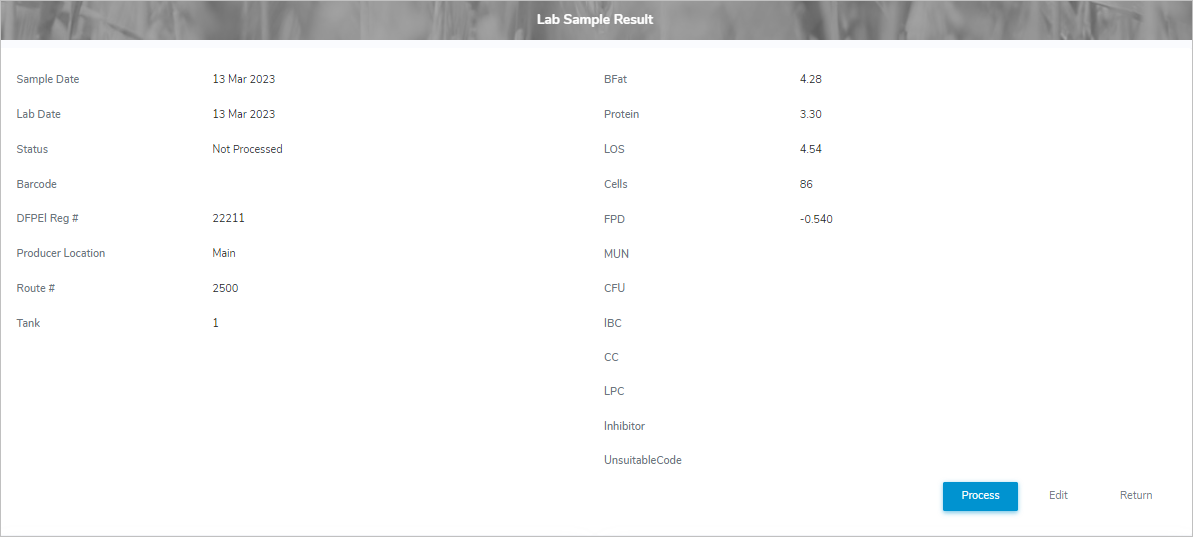
Note: The Process button only appears when the errors or messages have been resolved and if the lab test date is within an open period.
1)Click Process to display a message asking if you want to process these samples.
2)Click OK to confirm you want to process the sample. The lab samples and its detailed information overwrite the existing data values and display on the Lab Search page.
 Warning: After a lab sample has been processed it cannot be changed. Use this process with caution.