Adding a new transporter
To add a new transporter from the Transporter Listing page:
1)Click Add New to open the Add New Transporter page.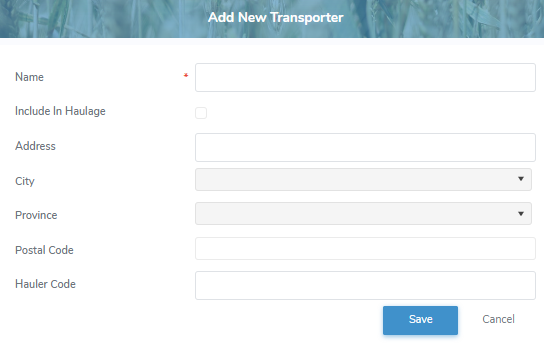
2)Complete the following details:
•Name*: Type full name of the transporter company.
•Include in Haulage: Select this checkbox if the milk pickup is to be included in the haulage payment calculations. Leave it unchecked for pickups, such as on-farm processing, that should be excluded from transporter payments.
•Address: Type head office address of transporter.
•City: Type first letter of the city or click the arrow to find and select the desired city.
•Province: Type first letter of the province or click the arrow to find and select the desired province.
•Postal Code: Type postal code.
•Hauler Code: Type the unique integer hauler code.
3)Click Save. A message displays that the transporter is successfully saved and proceeds to the Transporter page.
– or –
Click Cancel to return to the Transporter Listing page without saving changes.
 Note: You cannot delete a transporter. If transporter has been added by mistake, contact the Technical Assistance to remove.
Updating a transporter
To edit or update the transporter details of the shipment:
1)Click Edit icon to open the Update Transporter page, and then complete the details of the transporter as necessary (see Adding a new transporter for more information.)
2)Click Save to save the transporter details and return to the Transporter Listing page. The transporter information displays on the Transporter Listing page.
– or –
Click Cancel to return to the Transporter Listing page without saving changes.
Removing a transporter
To remove a transporter from the Transporter Listing page:
1)Click Remove icon of the transporter name you want to remove.
2)Click OK to confirm you want to remove this transporter. The transporter and its detailed information are deleted from the Transporter Listing page.