To search or find a shipment from the Pickup Slips page: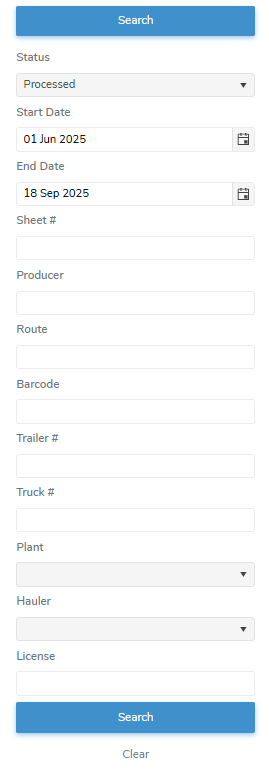
1)Type in one or more of the following details:
•Status: Type first letter of a status or click the arrow to find and select the desired status you want to search.
•Start Date: Type the date or click Calendar icon to select the shipment date you want to start your search.
 Note: The default Start Date is set to the current date less a week.
•End Date: Type the date or click Calendar icon to select the shipment date you want to end your search.
Note: The default End Date is set to the current date.
•Sheet #: Type full number of the Shipment Pickup slip sheet.
•Sask #: Type partial or full name of producer, and then use the scroll bar to move up or down to find and select the desired producer.
•Route: Type the full route number.
•Barcode: Type the full barcode number.
•Trailer #: Type the full number of the trailer.
•Truck #: Type the full number of the truck.
•Plant: Type first letter of a plant or click the arrow to find and select the desired plant you want to search.
•Hauler: Type first letter of the name of the transporter company or click the arrow to display list of haulers, and then select the hauler.
•License: Type the full license number of the driver.
2)Click Search or Enter key on your keyboard to display a list of shipments matching your criteria.
– or –
Click Clear to clear the criteria and start your search again
Note: If no matches, then a message displays no records available.