To add a new shipment from the Pickup Slips page:
1)Click Add New to open the New Shipment page.
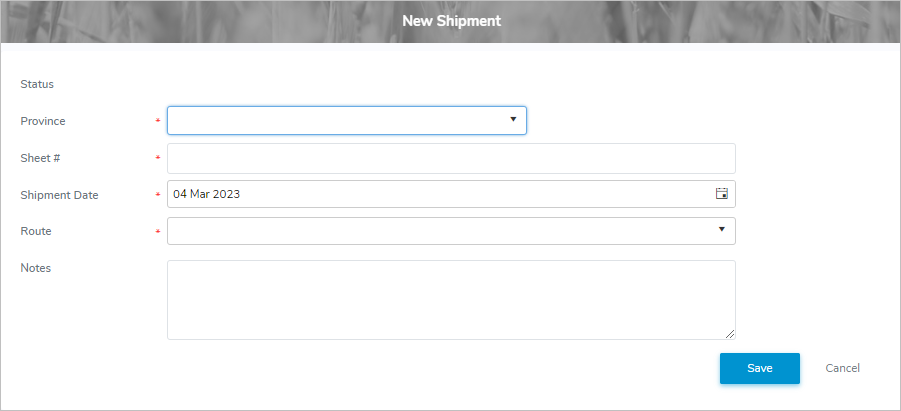
2)Complete the following shipment details:
•Province*: Type first letter of the province or click the arrow to find and select the desired province.
•Sheet #*: Type full number of the Shipment Pickup slip/sheet.
•Shipment Date*: Type date or click Calendar icon to select date of the shipment.
•Route*: Type the first character or click the arrow to find and select the desired route.
•Notes: Type any notes or comments you may have for the shipment.
 Tip: Shipment notes display on the Shipment Notes screen (see Shipment Notes for more information.)
3)Click Save. A message displays you have successfully saved a new shipment and the shipment details display on the Pickup Slips page.
– or –
Click Cancel to return to the Pickup Slips page without saving changes.