Adding a new out of province component
To add an new out of province component from the Out of Province Components page:
1)Click Add New to open the Add New Out of Province Component Test page, and then complete the following: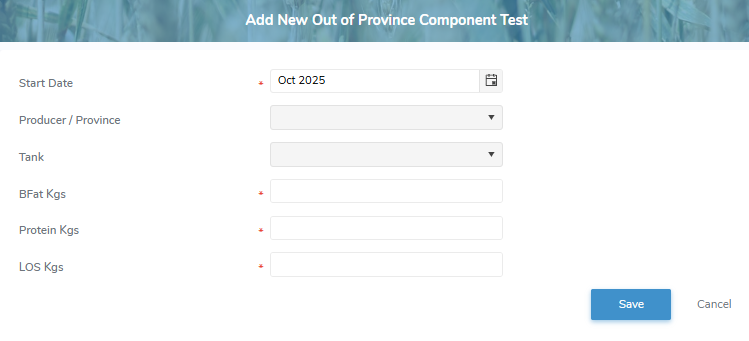
•Start Date*: Type the start date or click Calendar icon to select the desired start date.
•Producer/Province: Click the arrow to display list of provinces, and then use the scroll bar to move up or down the list to find and select the desired province.
•Tank: .Type the first character of the tank number, or click the arrow to find and select the desired tank.
 Tip: You must select a province before the tank information will display or appear in the dropdown list
•BFat Kgs*: Type the number of kilograms of butterfat.
•Protein Kgs*: Type the number of kilograms of protein.
•LOS Kgs*: Type the number of kilograms of LOS.
2)Click Save to save the out of province component details and return to the Out of Province Components page.
– or –
Click Cancel to return to the Out of Province Components page without saving changes.
Updating an out of province component
To edit or update the details of an out of province component from the Out of Province Components page:
1)Click Edit icon to open the Update Out of Province Component Test page, and then complete the details of the wash ticket as necessary (see Adding a new out of province component for more information.)
2)Click Save to save the out of province component details and return to the Out of Province Components page. The out of province component information displays on the list.
– or –
Click Cancel to return to the Out of Province Components page without saving changes.
Removing an out of province component
To remove an out of province component from the Out of Province Components page:
1)Click Remove icon of the out of province component row you want to remove.
2)Click OK to confirm you want to remove this out of province component. The out of province component and its detailed information are deleted from the Out of Province Components page.