To add a new contact from the Contacts page:
1)Click Add New to open the Edit Contact Details page.
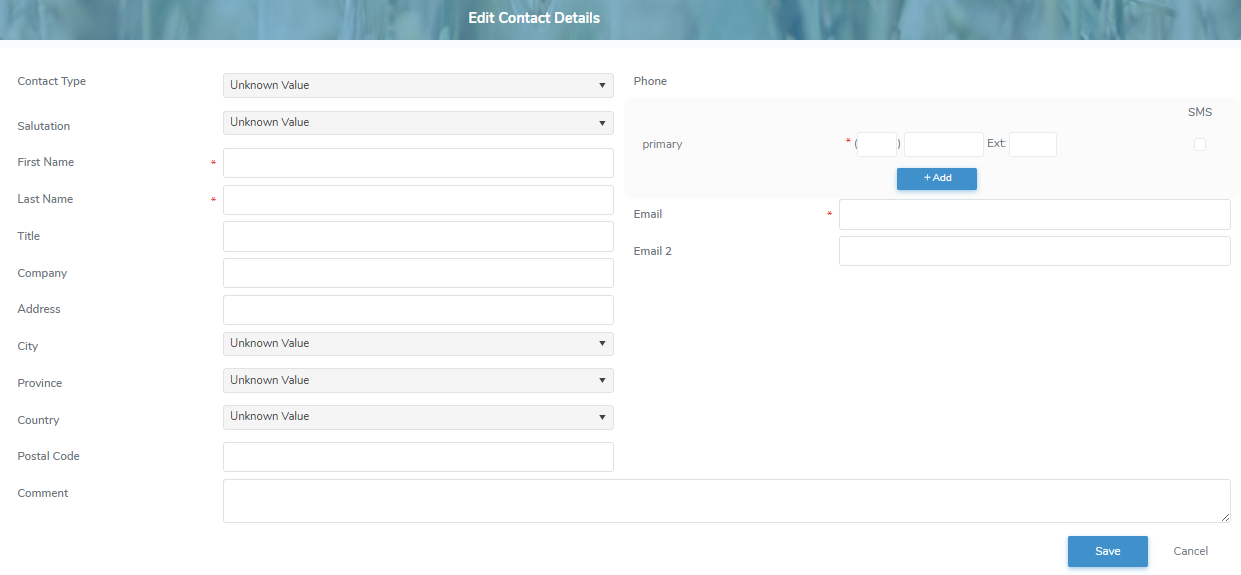
2)Complete the following details for the individual you are adding as a contact:
•Contact Type: Click the arrow to display the list of contact types, and thenselect the type of contact.
•Salutation: Click the arrow to display the list of salutations, and then select a salutation.
•First Name*: Type the first name.
•Last Name*: Type the last name.
•Title: Type the title (if applicable).
•Company: Type the company.
•Address/ Address 2: Type the address.
•City: Click the arrow to display the list of cities, and then use the scroll bar to move up or down the list to find and select the desired city.
•Province: Click the arrow to display the list of provinces, and then use the scroll bar to move up or down the list to find and select the desired province.
•Country: Click the arrow to display the list of countries, and then use the scroll bar to move up or down the list to find and select the desired country.
•Postal Code: Type the postal code
•Comment: Type a comment for the contact, if applicable.
Phone
•Primary*: Type the main phone number.
•SMS: Select the check box if the number can receive text messages.
 Tip: To add another phone number click +Add and select the type of phone number you want to add.
•Email* / Email 2: Type the primary email address. Add a second email address, if applicable.
3)Click Save. A message displays you have successfully updated the contact and the details display on the Contact Details page.
– or –
Click Cancel to return to the Contacts page without saving changes.