 Note: Only authorized users have permission to manage alert details. If you do not have permission to make changes, an error message will appear indicating that you do not have the required permissions to perform this action.
Adding a new Cumulative Position alert
To add a new alert from the Cumulative Position Alerts page:
1)Click Add New to open the Cumulative Position Alert page.
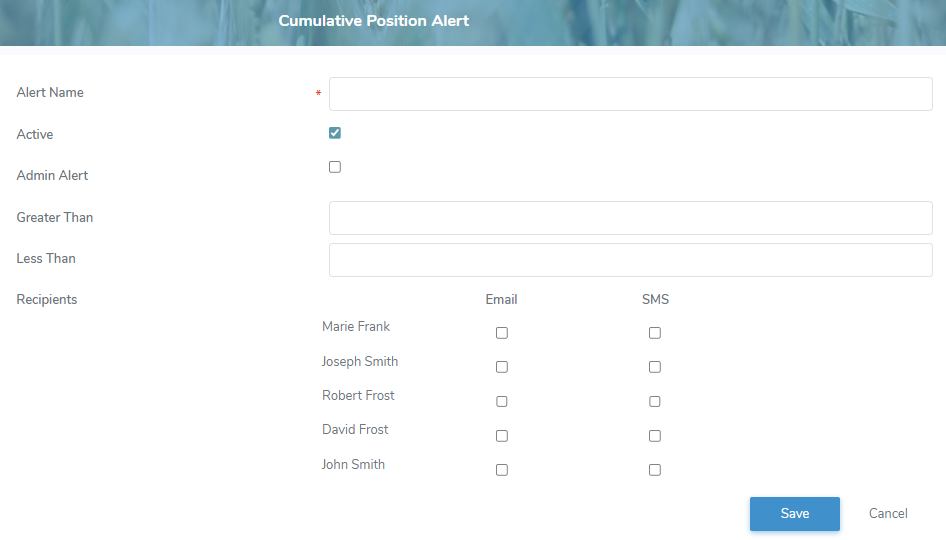
2)Complete the following details:
•Alert Name*: Type a name for the alert (maximum 255 characters).
•Active: Select the check box if you wish to activate the alert.
•Admin Alert: Select the check box if you wish to set the alert as an Admin alert.
Note: Producers are able to change the recipients of an Admin Alert but cannot edit any other portion of the alert.
•Greater Than: Type the value that if it exceeds you will receive an alert for.
•Less Than: Type the value that if it goes below you will receive an alert for.
•Recipients: Select the Email and/or SMS check box of the producer contact(s) you want to receive the alerts.
3)Click Save. A message displays you have successfully updated the alert and the details display on the Cumulative Position Alerts page.
– or –
Click Cancel to return to the Cumulative Position Alerts page without saving changes.
Updating a quality alert
To update or edit the details of a Cumulative Position alert from the Cumulative Position Alerts page:
1)Click Edit icon to open the Cumulative Position Alert page.
2)Update the details for the alert (see Adding a new Cumulative Position alert for more information.)
3)Click Save. A message displays you have successfully saved the alert and the information displays on the Cumulative Position Alerts page.
– or –
Click Cancel to return to the Cumulative Position Alerts page without saving changes.
Removing a quality alert
To remove or delete an alert from the Cumulative Position Alerts page:
1)Click Remove icon of the alert you wish to remove.
2)Click OK to confirm you want to delete this alert. The Cumulative Position alert and its detailed information are removed from the Cumulative Position Alerts page.