Adding a new quota transfer type
 Note: Any new quota transfer types must be coordinated with the SaskMilk developers, as they require system coding to function properly. The existing fields are primarily for historical reference.
To add a new quota transfer type from the Quota Transfer Types page: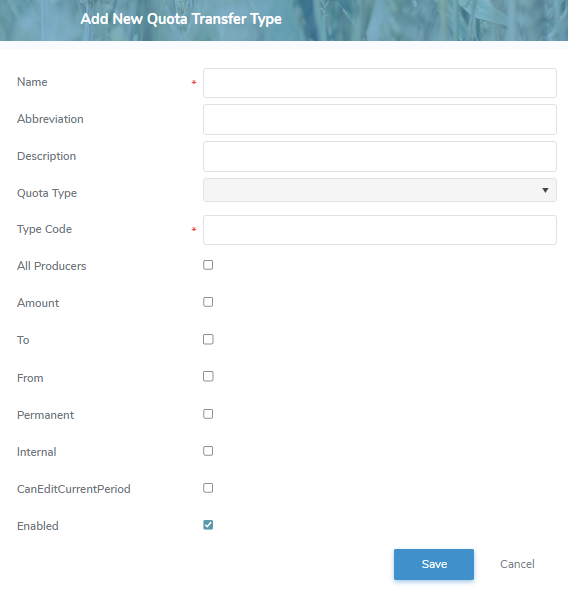
1)Click Add New to open the Add New Quota Transfer Type page.
2)Complete the following details:
•Name*: Type the name of the quota transfer type.
•Abbreviation: Type an abbreviation (maximum 15 characters).
•Description: Type a short description.
•Quota Type*: Click the arrow and select the type of quota that applies to the quota transfer.
Note: To see the full list of quota types go to Reference Material - Quota Types.
•Type Code*: Type a unique number for the code.
•All Producers: Select the check box it the transfer type applies to all producers.
•Amount: Select the check box it the transfer type is a flat amount.
Note: If the Amount check box is blank (not selected) then the transfer type is applied as a percentage.
•To: Select the check box if the transfer type requires to go to a producer.
Note: If the To check box is blank (not selected) then the transfer type is not going to another producer.
•From: Select the check box if the transfer type requires to come from a producer.
Note: If the From check box is blank (not selected) then the transfer type is not coming from another producer.
•Permanent: Select the check box if the quota transfer type is permanent transfer.
Note: If the Permanent check box is blank (not selected) then the transfer type is a temporary transfer.
•Internal: Select the check box if the quota transfer type is internal to the MPS (e.g., Quota Exchange.)
Note: If the Permanent check box is blank (not selected) then the transfer type is a temporary transfer.
•CanEditCurrentPeriod: Select the check box if the quota transfer type impacts the current open period.
Note: If the CanEditCurrentPeriod check box is blank (not selected) then the transfer type applies to the next period.
•Enabled: Select the check box if the quota transfer type is currently active.
3)Click Save to save the quota transfer type and return to the Quota Transfer Types page. The quota transfer type displays on the list.
– or –
Click Cancel to return to the Quota Transfer Types page without saving the details.
Updating a quota transfer type
To edit or update the details of a quota transfer type from the Quota Transfer Types page:
1)Click Edit icon to open the Update Quota Transfer Type page.
2)Edit or update the details of the quota transfer type as necessary (see Adding a new quota transfer type for more information.)
3)Click Save to save the quota transfer type and return to the Quota Transfer Types page. The code value displays on the list.
Removing a quota transfer type
To remove a quota transfer type from the Quota Transfer Types page:
1)Click Remove icon of the quota transfer type you want to remove.
2)Click OK to confirm you want to remove this item. The quota transfer type and its detailed information are deleted from the Quota Transfer Types page.