Adding a new quota exchange parameter
To add a new quota exchange parameter from the Quota Exchange Parameters page:
1)Click Add Parameters to open the Quota Exchange Parameters page.
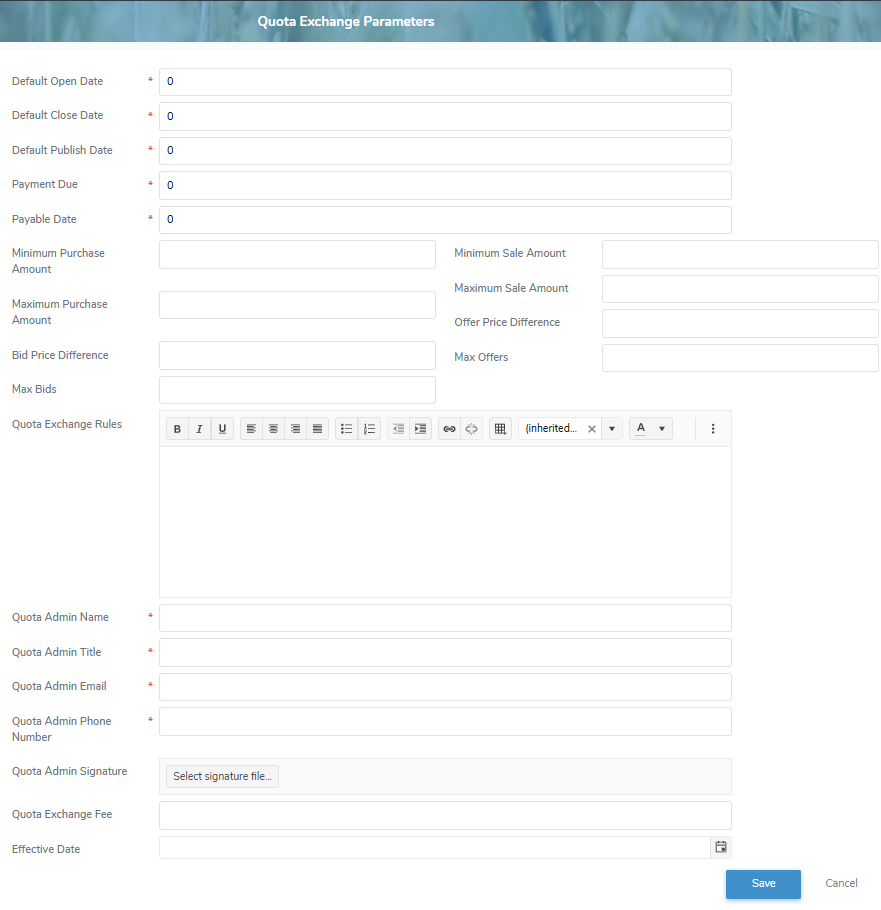
2)Complete the following details:
•Default Open Date*: Type the day of the month the quota exchange opens.
•Default Close Date*: Type the day of the month the quota exchange closes.
•Default Publish Date*: Type the day of the month the quota exchange is published.
•Payment Due*: Type the day of the month the quota exchange successful buyers are required to make payment for quota purchased.
•Payable Date*: Type the day of the month the quota exchange successful sellers will receive payment for quota sold.
•Payable To: Type the name of the organization the quota exchange payment is to paid to.
•Minimum Sale Amount: Type the minimum saleable amount of kilograms of BFat quota which can be sold in a quota exchange.
•Maximum Sale Amount: Type the maximum saleable amount of kilograms of BFat quota which can be sold in a quota exchange.
•Offer Price Difference: Type the minimum price difference between producers for an offer to sell.
•Bid Price Difference: Type the minimum price difference between producers for a bid to purchase.
•Max Offers: Type the maximum number of quota exchange offers a producer can submit to sell.
•Max Bids: Type the maximum number of quota exchange bids a producer can submit to sell.
•Quota Exchange Rules: Type the written rules which display on the quota exchange letter.
•Quota Admin Name*: Type the name of the Administrator which displays on the quota exchange letter.
•Quota Admin Title*: Type the title of the Administrator which displays on the quota exchange letter.
•Quota Admin Email*: Type the email of the Administrator which displays on the quota exchange letter.
•Quota Admin Phone Number*: Type the phone number of the Administrator which displays on the quota exchange letter.
•Quota Admin Signature: Click Select signature file and use the window explorer to find and open a signature file of the Administrator which displays on the quota exchange letter.
•Quota Exchange Fee: Type the quota exchange fee to be applied on the quota exchange purchase.
•Effective Date: Type the date or click Calendar icon to select the quota exchange date becomes effective.
 Note: If the Effective Date is blank the system will try to create a default record. If the default record already exists, the system will prompt the user to enter an Effective Date.
3)Click Save. The quota exchange parameters display on the Quota Exchange Parameters page.
– or –
Click Cancel to return to the Quota Exchange Parameters page without saving changes.
Updating a quota exchange parameter
To edit or update a quota exchange parameter from the Quota Exchange Parameters page:
1)Click Edit icon to open the Quota Exchange Parameters page.
2)Edit or update the details of the quota exchange parameters as necessary (see Adding a new quota exchange parameter for more information.)
3)Click Save to save the quota exchange parameters and return to the Quota Exchange Parameters page. The details displays on the Quota Exchange Parameters page.
Removing a quota exchange parameter
To remove a quota exchange parameter from the Quota Exchange Parameters page:
1)Click Remove icon of the quota exchange parameter you want to remove.
2)Click OK to confirm you want to remove this item. The quota exchange parameter and its detailed information are deleted from the Quota Exchange Parameters page.