Adding a new payment adjustment type
To add a new payment adjustment type from the Payment Adjustment Types page:
1)Click Add New to open the Add New Payment Adjustment Type page, and then complete the following: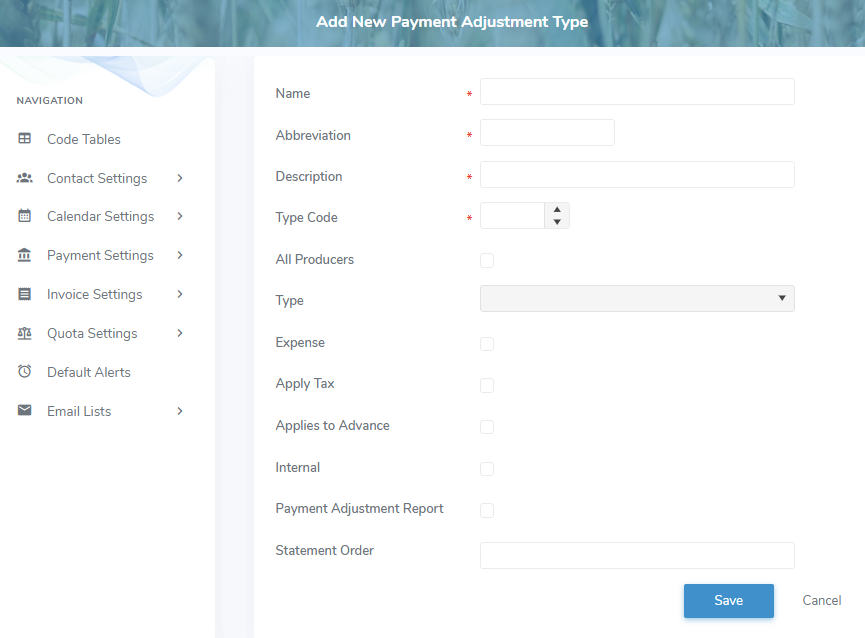
•Name*: Type a name that describes the payment adjustment type.
•Abbreviation*: Type an abbreviation (maximum 15 characters)
•Description*: Type a short description.
•Type Code*: Type a distinct number code.
•All Producers: Select the check box if adding the payment adjustment applies to all producers.
•Type*: Click the arrow and select the type (i.e., Amount, Rate) that applies to the payment adjustment.
•Expense: Select the check box if the payment adjustment is an expense.
 Note: If expense check box is blank (not selected) then payment adjustment is applied as a revenue.
•Apply Tax: Select the check box if tax applies (i.e., GST) applies to the payment adjustment.
•Applies to Advance: Select the check box if the payment adjustment will also impact the next advance payment of the producers.
•Internal: Select the check box if the month end process of the Milk Payment System automatically calculates, and adds or edits the payment adjustment.
•Payment Adjustment Report: Select the check box if the payment adjustment report needs to display the payment adjustment.
•Statement Order: Type the order number you would like the payment adjustment to display on the producer statement.
2)Click Save to save the payment adjustment type and return to the Payment Adjustment Types page. The payment adjustment type displays on the Payment Adjustment Types page.
– or –
Click Cancel to return to the Payment Adjustment Types page without saving the details.
Updating a payment adjustment type
To edit or update the details of a payment adjustment type from the Payment Adjustment Types page:
1)Click Edit icon to open the Update Payment Adjustment Types page.
2)Edit or update the details of the payment adjustment type as necessary (see Adding a new payment adjustment type for more information.)
3)Click Save to save the payment adjustment type and return to the Payment Adjustment Types page. The payment adjustment type displays on the Payment Adjustment Types page.
Removing a payment adjustment type
To remove a payment adjustment type from the Payment Adjustment Types page:
1)Click Remove icon of the payment adjustment type you want to remove.
2)Click OK to confirm you want to remove this type. The payment adjustment type and its detailed information are deleted from the Payment Adjustment Types page.