Adding a new default alert
To add a new default alert from the Default Alerts page: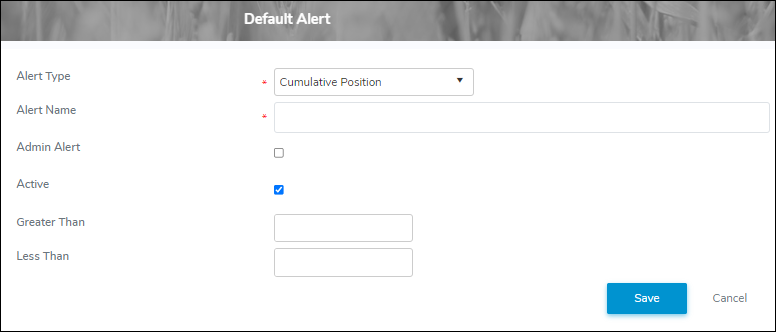
1)Click Add New to open the Default Alert page.
2)Complete the following details:
•Alert Type*: Click the arrow and select the type of alert you wish to create (i.e., Cumulative Position, Quality, Credit Bulletin, Transfer Request, Quota Exchange, Lease Request, Quota Management Sheets, Producer Statement, or Shipment.)
•Alert Name: Type the name of the alert.
•Admin Alert: Select the check box if the alert is an Admin alert.
•Active: Select the check box if the alert is currently active.
 Note: If the check box is blank (not selected) then no alert message is sent to the producers accounts.
•Greater Than: Type a number value for the alert type to be greater than to trigger the alert.
•Less Than: Type a number value for the alert type to be less than to trigger the alert.
3)Click Save to save the default alert and return to the Default Alerts page. The default alert displays on the Default Alerts page.
– or –
Click Cancel to return to the Default Alerts page without saving the details.
Updating a default alert
To edit or update the details of a default alert from the Default Alerts page:
1)Click Edit icon to open the Default Alert page.
2)Edit or update the details of the default alert as necessary (see Adding a new default alert for more information.)
3)Click Save to save the default alert and return to the Default Alerts page. The default alert will display on the list.
Removing a default alert
To remove a default alert from the Default Alerts page:
1)Click Remove icon of the default alert you want to remove.
2)Click OK to confirm you want to remove this item. The default alert and its detailed information are deleted from the Default Alerts page.