To edit, add, update or delete a quality range for a selected quality type from the Quality Range Maintenance page:
•Click Edit icon to open the Quality Range Maintenance page which displays the quality range you have selected.
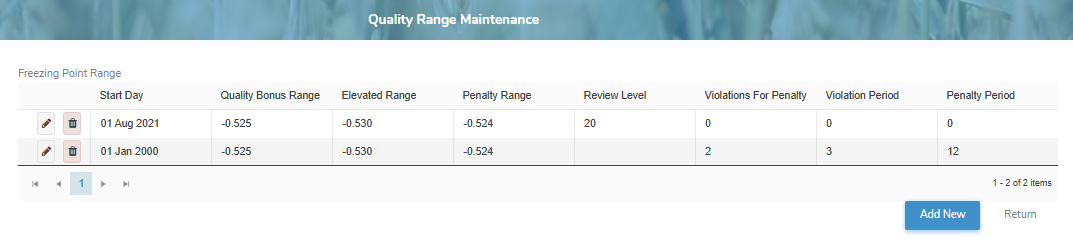
Adding a new quality range
To add a new quality range for a selected quality type from the Quality Range Maintenance page:
1)Click Add New to open the Quality Range page, and then complete the following: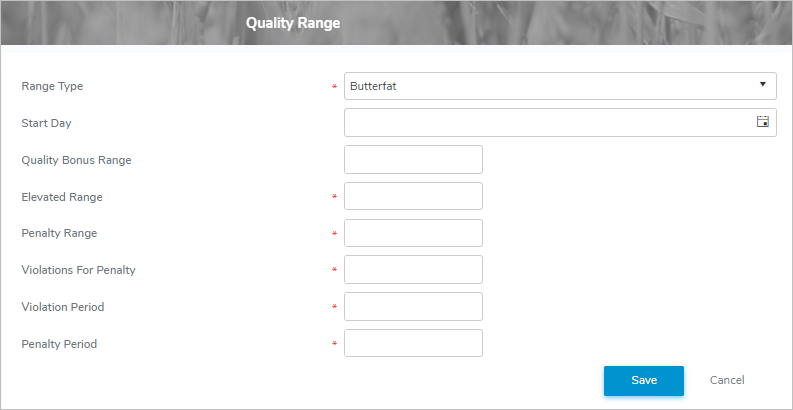
•Range Type: Type the first letter of the range type, or click the arrow to display list of range types, and then use the scroll bar to move up or down the list to find and select a range type.
 Note: Each quality range uses the same measurement units as its test type—for example, temperature for Freezing Point, or counts for IBC and SCC.
•Start Day: Type the date or click the Calendar icon to select a start date.
•Quality Bonus Range: Type the maximum weighted average value for the quality bonus range.
Note: To qualify for a quality bonus, all of a producer’s test results for the month must be below the Quality Bonus Range value.
•Elevated Range*: Type the value of the elevated range.
Note: A test result higher than this value is considered to be in the elevated range.
•Penalty Range*: Type the value of the penalty range.
Note: A test result higher than this value is considered to be in violation and may be subject to a penalty.
•Review Level: Type the measure/value of the review level.
Note: The Review Level is the allowable percentage difference between a route test and producer test. If the route test differs by more than this percentage, the result is flagged as invalid for review.
•Violations for Penalty*: Type the number of the violations for penalty.
Note: Specifies the number of violations within the defined period that will trigger a penalty.
•Violation Period*: Type the number of months used to calculate penalties.
Note: Defines the number of months, including the current month, of test results used to calculate penalties. For example, if a producer has five violations within this period, a penalty is triggered.
•Penalty Period*: Type the measure/value of the penalty period.
Note: Defines the time frame (in months) used to calculate a producer’s penalty level. For example, if the Penalty Period is set to 12 months, penalties are counted based on the past 12 months. As each new month begins, the oldest month drops off, ensuring only the most recent year of penalties affects the current penalty level (see Penalty Ranges for more information regarding penalty levels.)
2)Click Save to save the quality range and return to the Quality Range Maintenance page for the quality type you have selected.
– or –
Click Cancel to return to the Quality Range Maintenance page without saving the details.
Updating a quality range
To edit or update a quality range from the Quality Range Maintenance page:
1)Click Edit icon beside the range type you wish to update to open the Quality Range page.
2)Edit or update the details of the quality range as necessary (see Adding a new quality range for more information.)
3)Click Save to save the quality range values and return to the Quality Range Maintenance page.
Removing a quality range
To remove a quality range for a selected quality type from the Quality Range Maintenance page:
1)Click Remove icon of the quality range row you want to remove.
2)Click OK to confirm you want to remove this item. The quality range and its detailed information are deleted from the Quality Ranges page.