Adding new producer communication
To add a new producer communication: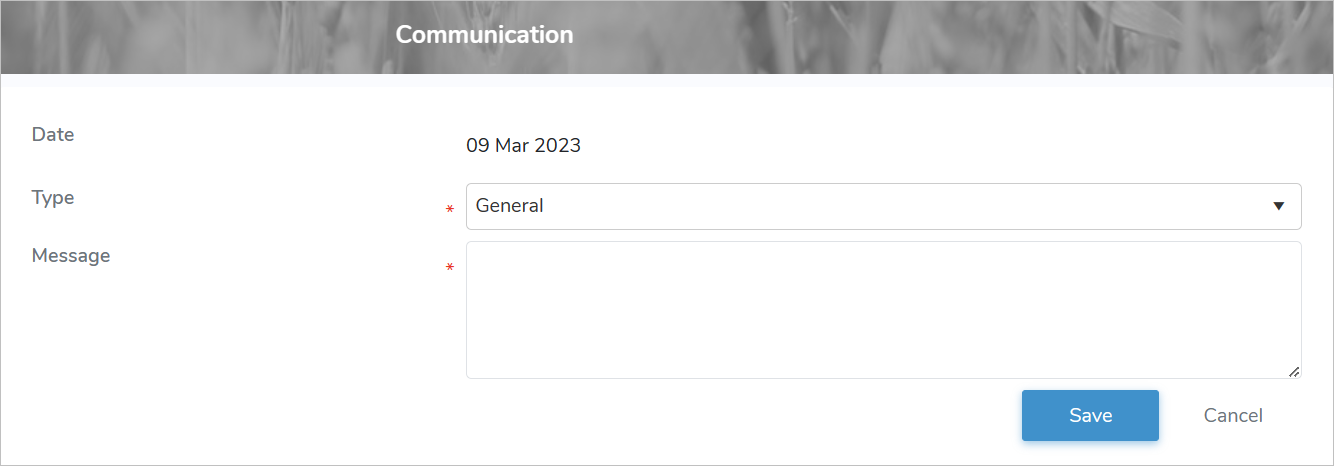
1)Click Add New to open the Communication page, and then complete the following:
•Date: Not editable. Defaults to current date.
•Type*: Type the first letter of the communication type or click the arrow to display, and then select the desired communication type.
•Message*: Type a message to the producer.
2)Click Save to save the notification to the producer's profile and return to the Communication Search page. The communication information displays on the Communication Search page.
– or –
Click Cancel to return to the Communication Search page without saving the details.
 Note: Communications display based on the user's permissions. Administrators will be able to see all communications, and producer contacts will only see the communications based on their user access role (Quota and Quality).
Updating a producer communication
To edit or update the details of a producer communication:
1)Click Edit icon to open the Communication page.
2)Edit or update the details of the producer communication as necessary (see Adding new producer communications for more information.)
3)Click Save to save the producer communication and return to the Communication Search page. The communication information displays on the Communication Search page.
Removing a producer communication
To remove a producer communication:
1)Click Remove icon of the producer communication you want to remove.
2)Click OK to confirm you want to remove this communication. The communication and its detailed information are deleted from the Communication Search page.