To view details or make changes to the contacts of the plant in the Plant General page:
•Click the Contacts on the Navigation bar to open the Plant Contacts page.
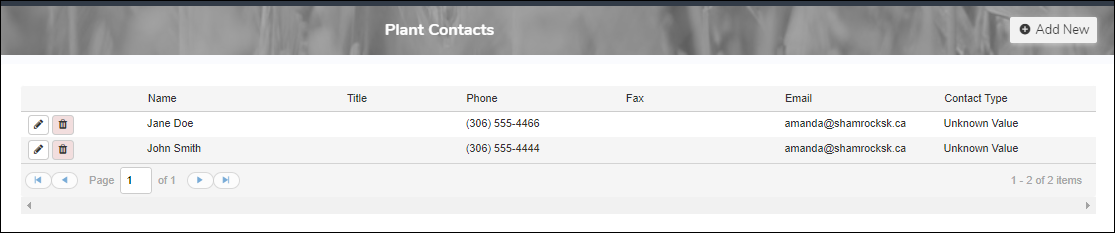
Adding a new plant contact
To add a new plant contact:
1)Click Add New to open the Add Plant Contact page, and then complete the following: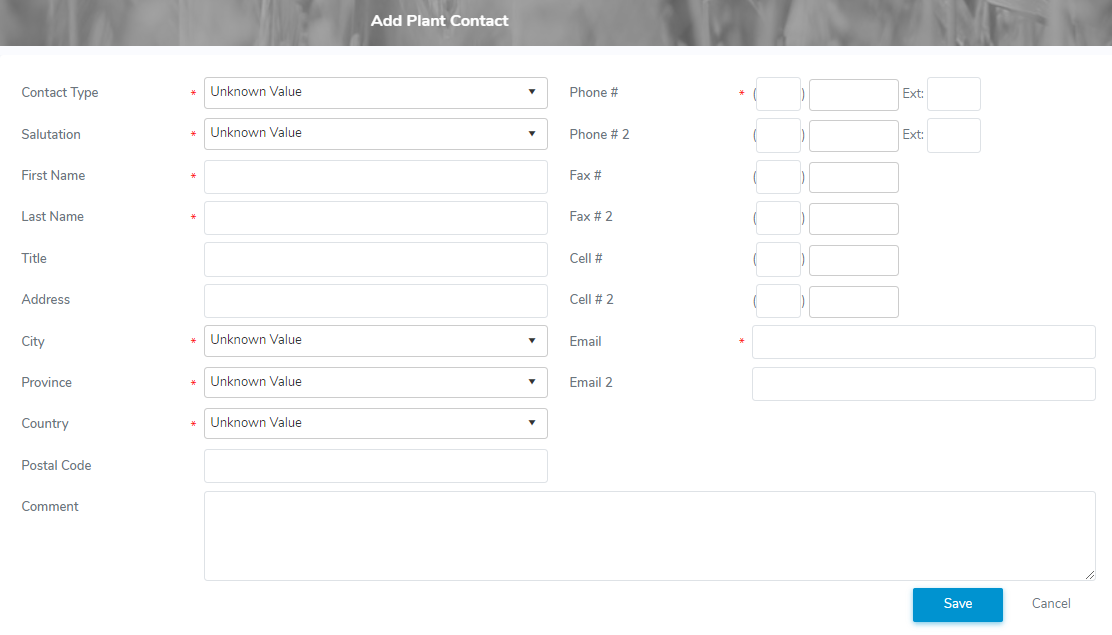
•Contact Type*: Type the first letter or click the arrow to find and select the desired type of contact.
•Salutation: Type the first letter or click the arrow to find and select the desired type of salutation for the contact.
•First Name*: Type the first name of the contact.
•Last Name*: Type the last name of the contact.
•Title: Type the title of the contact, if applicable.
•Address: Type the street address of the contact or plant.
•City: Type first letter of the city or click the arrow to display list of cities, and then select the city.
•Province: Type first letters of the province or click the arrow to display list of provinces, and then select the province.
•Country: Type first letter of the country or click the arrow to display list of the countries, and then select the country.
•Postal Code: Type the postal code of the plant.
•Comment: Type a comment for the contact, if applicable.
Phone
•Primary*: Type the main phone number.
•SMS: Select the check box if the number can receive text messages.
 Tip: To add another phone number click +Add and select the type of phone number you want to add.
•Email* / Email 2: Type the primary email address. Add a second email address, if applicable.
2)Click Save to save the contact and return to the Plant Contacts page. The status information displays on the Plant Contacts page.
– or –
Click Cancel to return to the Plant Contacts page without saving the details.
Updating a plant contact
To edit or update the contact of a plant:
1)Click Edit icon to open the Edit Plant Contact page.
2)Edit or update the details of the plant contact as necessary (see Adding a new plant contact for more information.)
3)Click Save to save the contact and return to the Plant Contacts page. The status information displays on the Plant Contacts page.
Removing a plant contact
To remove a contact from the plant:
1)Click Remove icon of the contact you want to remove.
2)Click OK to confirm you want to remove this contact. The contact and its detailed information are deleted from the Plant Contacts page.