The Ranges screen on the Quality Penalty Range page allows you to add, edit, or delete individual penalty ranges within a penalty range grouping.

Adding a new individual penalty range
To add a new individual penalty range from the Ranges screen:
1)Click Add Range to open the Range Detail dialog, and then complete the following: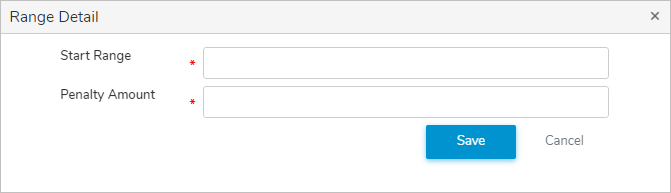
•Start Range*: Type number of penalties at which a penalty amount begins to apply.
•Penalty Amount*: Type the dollar amount ($0.00) applied when the range starts or is exceeded.
2)Click Save to save the the individual penalty range and return to the Penalty Range page. The range displays on the Range screen.
– or –
Click Cancel to return to the Penalty Range page without saving the details.
Updating an individual penalty range
To edit or update an individual penalty range from the Ranges screen:
1)Click Edit icon to open the Range Detail dialog.
2)Edit or update the details of the range as necessary (see Adding a new individual penalty range for more information.)
3)Click Save to save the individual penalty range and return to the Penalty Ranges page. The range displays on the Range screen.
Removing an individual penalty range
To remove an individual penalty range from the Range screen:
1)Click Remove icon of the individual penalty range you want to remove.
2)Click OK to confirm you want to remove this item. The individual penalty range and its detailed information are deleted from the Range screen.