The Lease Request dialog allows you to make limited updates to a lease request. From this dialog, you can edit the lease transfer amount, change the status of the request (approve or cancel), and upload supporting documents as needed.
At the bottom of the dialog, system details are displayed, including who originally created the lease request and when it was created, as well as who last updated it and the date of the most recent update.
Adding a new lease request listing
To add a new credit request listing from the Lease Request Listing screen:
1)Click Add Request to open the Lease Request dialog.
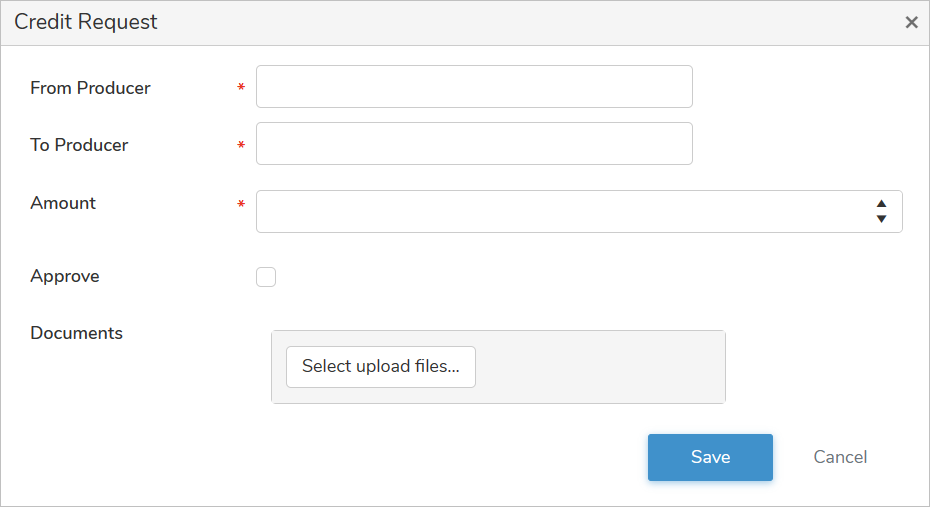
2)Complete the following details:
•From Producer*: Type partial or full number of producer, and then use the scroll bar to browse the list and select the producer you want to transfer the lease from.
•To Producer*: Type partial or full number of producer, and then use the scroll bar to browse the list and select the producer you want to transfer the lease to.
•Amount: Type or use the arrows to select the amount of BFat (kgs) to be transfer as part of the lease request.
 Note: A message will appear if the producer is unable to send or receive the lease.
•Approve: Select the check box if the request is approved.
•Documents: Select upload files to select the files you wish to add.
3)Click Save. The credit transfer details display on the Lease Request Listing screen.
– or –
Click Cancel to return to the Lease Transfer Period page without saving changes.
Updating a lease request listing
To edit or update a transfer of lease request from the Lease Request Listing screen: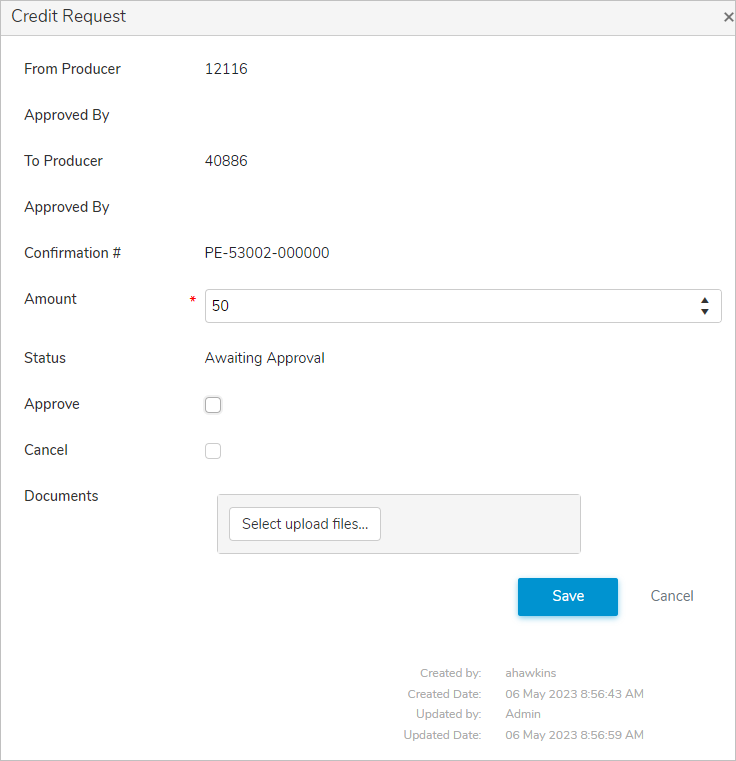
1)Click the Edit icon to open the Lease Request dialog.
2)Update the following details as needed.
•Amount*: Type or use the arrows to select the amount of BFat (Kgs) to be transfer as part of the lease request.
•Approve: Select the check box if the request is approved.
•Cancel: Select the check box if the request is cancelled.
Note: You must record the reason for the cancellation if the Cancel check box is selected.
•Cancel Reason*: Type the reason for the cancellation.
•Documents: Select upload files to select the files you wish to add.
3)Click Save. The lease request listing is updated and the details display on the Lease Request Listing screen.
– or –
Click Cancel to return to the Lease Transfer Period page without saving changes.
Note: After a lease request has been approved or canceled, it becomes view-only and can no longer be updated or edited. The name of the individual who approved the lease transfer request on behalf of the producers (From and To) is displayed below the producer number.
Removing a lease request listing
To remove or delete a lease request listing from the Lease Request Listing screen:
1)Click Remove icon of the lease request listing you wish to remove.
2)Click OK to confirm you want to delete this item. The lease request listing and its detailed information are deleted from the Lease Request Listing screen.
Exporting lease request listings
The lease request listings can be export in an Excel or PDF format.
To export the results from the Lease Transfer Period page:
a)Click Export to Excel to export the details in an Excel format.
 Tip: By default, most downloaded files open in the Internet browser currently in use, usually in a new window or to your Downloads file on your computer.
– or –
b)Click Export to PDF to export the details in a pdf format.