Adding a new document type
To add a new document from the Document Types page:
1)Click Add New to open the Add Document Type page.
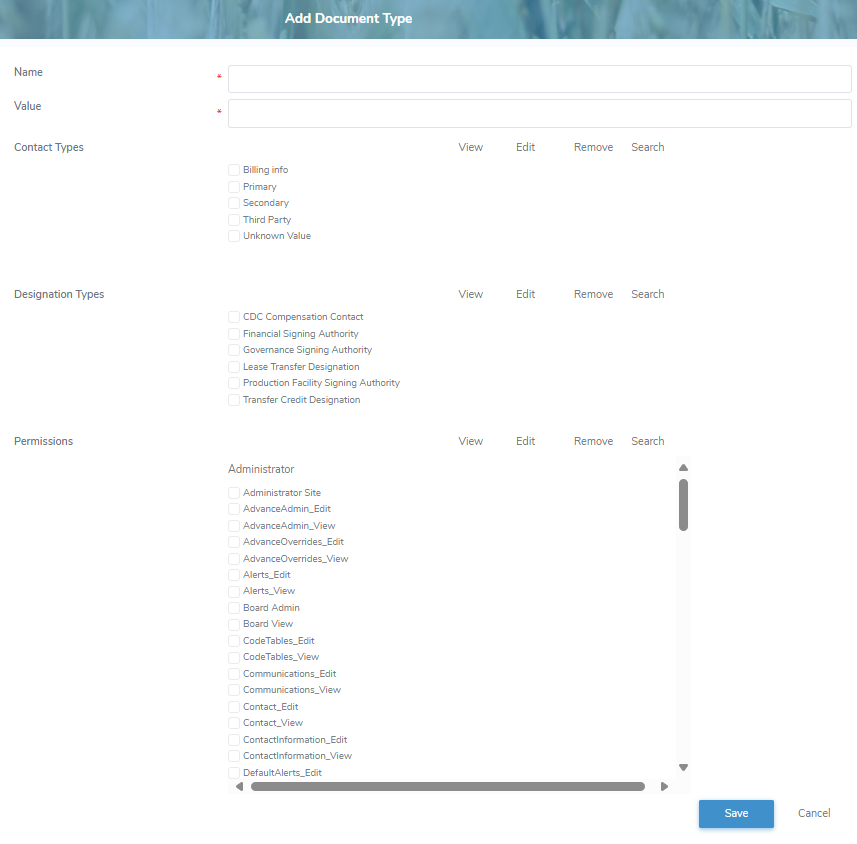
2)Complete the following details:
•Name*: Type a name for the document type.
•Value*: Type a numeric value for the document type.
•Contact Types: Optional. Select the check box of one or more contact types to assign access, then specify whether they can add, edit, remove, and/or search the document type.
•Designation Types: Optional. Select the check box of one or more designation types to assign access, then specify whether they can add, edit, remove, and/or search the document type.
•Permissions: Optional. Select the check box of one or more permissions to assign access, then specify whether they can add, edit, remove, and/or search the document type.
 Note: To see the full list of permission types go to Reference Material > Permission Types.
oView: Select the check box to allow viewing documents of this document type.
oEdit: Select the check box to allow editing existing documents of this document type.
oRemove: Select the check box to allow removing documents of this document type.
oSearch: Select the check box to allow searching for documents of this document type.
Note: Search is the minimum access to allow the permission type to search and view the document.
3)Click Save to save the document type and return to the Document Types page. The document type displays on the Document Types page.
– or –
Click Cancel to return to the Document Types page without saving the details.
Updating a document type
To edit or update the details of a document type from the Document Types page:
1)Click Edit icon to open the Update Document Type page.
2)Edit or update the details of the document type as necessary (see Adding a new document type for more information.)
3)Click Save to save the document type and return to the Document Types page. The document type displays on the Document Types page.
Removing a document type
To remove a document type from the Document Types page:
1)Click Remove icon of the document type you want to remove.
2)Click OK to confirm you want to remove this item. The document type and its detailed information are deleted from the Document Types page.