To update or edit the details of a route from the Route Listing page:
1)Click Edit icon to open the Update Route page.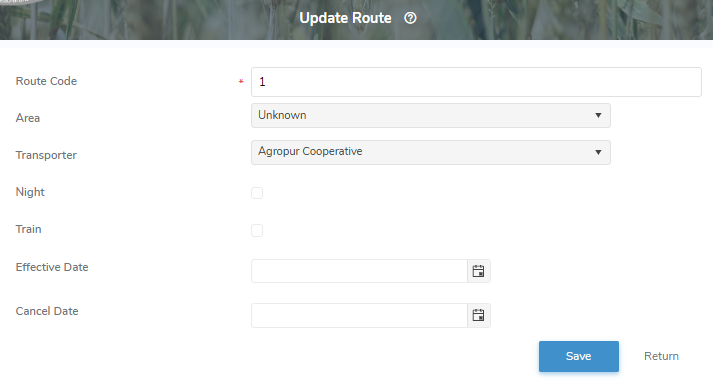
2)Update the details of the trailer as needed:
•Route Code*: Type assigned number of the route
•Area*: Click Area arrow to find and select the desired main area that the route will take place in.
•Transporter: Click Transporter arrow to select the name of company that will manage the route.
 Note: A transporter name may be left blank however the route will not display in the route listing of the handheld devices as a route to select.
•Night: Check Night box if route is completed at night
•Train: Check if Train box if route uses two trailers.
•Effective Date: Type date or click Calendar icon to select date that the route became operational.
•Cancel Date: Type date or click Calendar icon to select date that the route is discontinued.
3)Click Save and return to the Route page. A message displays you have successfully saved the route.
– or –
Click Cancel to return to the Route Listing page without saving changes.
The screen proceeds to the Route page, where you can:
4)Click Edit to make changes to the route details (see above for more information);
– or –
Click Return to return to the Route Listing page.