The Permanent Quota Increase/Decrease Details screen allows you to add, edit, or delete permanent quota transfers details.
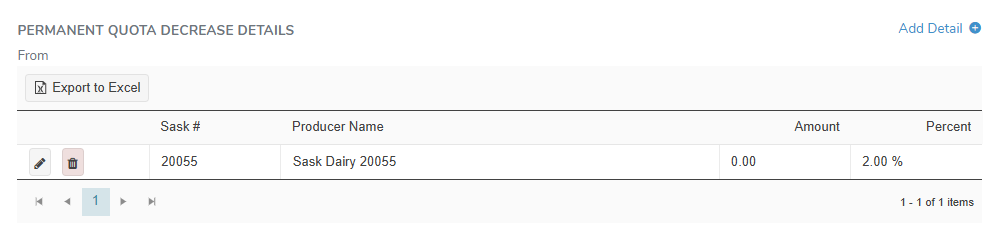
Adding a new permanent quota increase/decrease transfer detail
To add a new permanent quota increase/decrease transfer detail on the Permanent Quota Increase/Decrease Details screen:
1)Click Add Detail to open the Quota Transfer Detail dialog.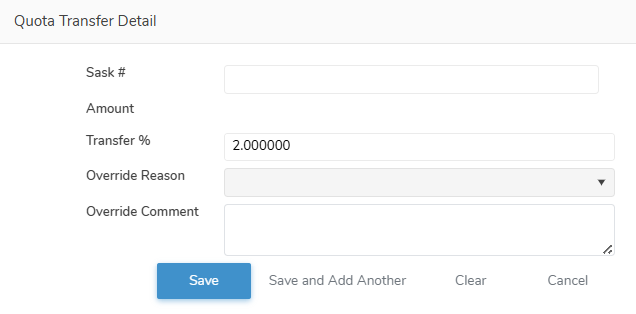
2)Complete the following:
•Sask #: Type partial or full number of producer, and then use the scroll bar to move up or down to find and select the desired producer.
•Amount: Type the total amount of BFat (Kgs) being increased or decreased from the producer.
•Transfer %: Type the percentage of BFat (Kgs) being increased or decreased from the producer.
•Override Reason: Click the arrow to display list of override reasons (e.g., Quota, Undershipping Penalty), and then select the one that applies.
•Override Comment: Type any notes or comments you may have for the override.
3)Click Save to record the permanent quota increase/decrease transfer detail and return to the Credit/Quota Transfer page. The saved information displays on the Permanent Quota Increase/Decrease Details screen.
– or –
Click Save and Add Another to save the record and add a new transfer detail.
– or –
Click Clear to remove the selected producer and transfer information without saving the details.
– or –
Click Cancel to return to the Quota Transfer page without saving the details.
Updating a permanent quota increase/decrease transfer detail
To edit or update the details of a permanent quota increase/decrease transfer on the Permanent Quota Increase/Decrease Details screen:
1)Click Edit to open the Quota Transfer Detail dialog.
2)Update the details of the permanent quota increase/decrease transfer as needed (see Adding a new permanent quota increase/decrease transfer detail for more information.)
– or –
Click Save and Add Another to save the record and add a new transfer detail.
– or –
Click Clear to remove the selected producer and transfer information without saving the details.
– or –
Click Cancel to return to the Quota Transfer page without saving the details.
Removing a permanent quota increase/decrease transfer detail
To remove details of a permanent quota increase/decrease transfer from the Permanent Quota Increase/Decrease Details screen:
1)Click Remove icon of the permanent quota increase/decrease transfer row you wish to remove.
2)Click OK to confirm you want to remove this item. The permanent quota increase/decrease transfer and all related information will be deleted.
Exporting permanent quota increase/decrease transfer detail results
To export the results from the Permanent Quota Increase/Decrease Details screen:
•Click Export to Excel to export the details in an Excel format.
 Tip: By default, most downloaded files open in the Internet browser currently in use, usually in a new window or to your Downloads file on your computer.