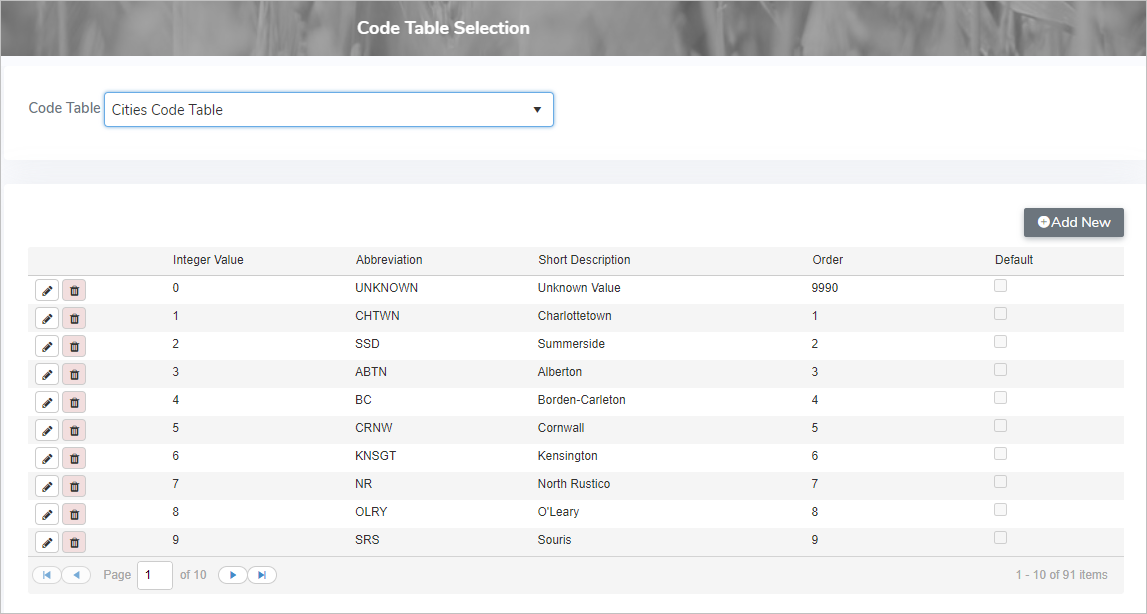
To view details or make changes to a selected code table from the Code Table Selection page:
•Type the first letter of the code table or click Code Table arrow to display list of code tables, then use the scroll bar to move up or down to find and select the desired code table.
 Note: To see the full list of codes table types go to Reference Material > Code Table Types.
Adding new code value
To add a new code value from the Code Table Selection page:
1)Click Add New to open the Add Code Table Value page, and then enter values for the following:
Fields for all code tables: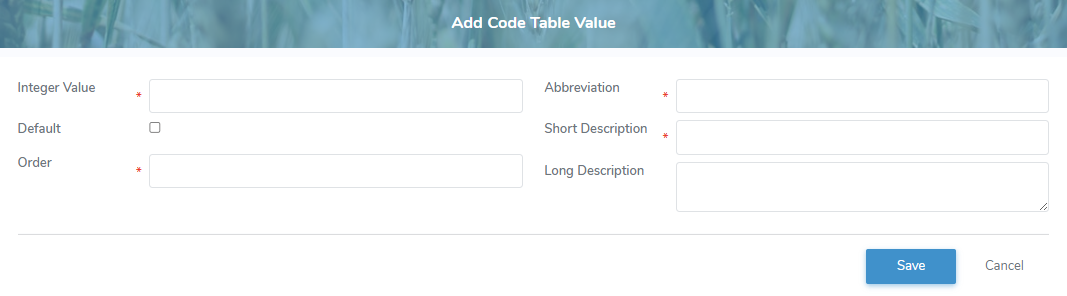
•Integer Value*: Type the number value for the integer.
•Default: Select the Default check box if you would like the value to be the default.
•Order*: Type the number order that you would like the value to appear.
•Abbreviation*: Type the abbreviation.
•Short Description: Type a short description.
•Long Description: Type a long description.
Additional information for Contact Designation List codes:
•MaxAllowed: Type the number of maximum contact designations allowed.
•Required: Select the check box if the contact designation is required.
Additional information for Current Lab Test Tolerance Numbers codes:
•Value: Type the value number for the current lab test tolerance.
Additional information for Financial Institutions Code Table codes:
•FinancialInstitutionNumber: Type the 3 digit institution number for the bank.
Additional information for Milk Class Sub Type codes:
•Amount Only: Select the check box if the code value is for an amount only.
•BoardAdjustment: Type the Type Code integer value that links a milk subtype from MUV to its corresponding processor board adjustment (see Processor Board Adjustment Types for more information.)
Note: The system uses this value to create adjustments—such as for chocolate milk promotion, food bank, and skim milk disposal—based on imported invoice data.
•Calculate Price: Select the check box if the code value is a calculated price.
•Deduct: Select the check box if the code value is a deduction.
•Ingredient: Select the check box if the code value is an ingredient.
•Misc Rate: Type a short description of the miscellaneous rate.
•Plant Sale: Select the check box if the code value is a plant sale.
•Use Class Price: Select the check box if the code value is an use class price.
•Zero Value: Select the check box if the code value is a zero value.
Additional information for Milk Class Types codes:
•Milk Class: Type a title for the milk class.
•Milk Class Type: Type a type for the milk class.
•Skim Price Required: Select the check box if the code value for the milk class requires skim milk price.
Additional information for Miscellaneous Rate Types codes:
•Allow Future: Select the check box if the code value can be applied to the future.
•Integer Rate: Select the check box if the code value is an integer rate.
•MiscExpRev: Select the check box if the code value is an expense.
Note: If expense check box is blank (not selected) then payment adjustment is applied as a revenue.
•MultiMonth: Select the check box if the code value is spans multiple months.
•Percentage: Select the check box if the code value is a percentage.
•Single Month: Select the check box if the code value is for a single month..
2)Click Save to save the code value and return to the Code Table Selection page. The saved code value displays on the Code Table Selection page.
– or –
Click Cancel to return to the Code Table Selection page without saving the details.
Updating a code value
To edit or update the status details of code value from the Code Table Selection page:
1)Click Edit icon to open the Update Code Table Value page.
2)Edit or update the details of the code value as necessary (see Adding new code value for more information.)
3)Click Save to save the code value and return to the Code Table Selection page. The code value displays on the Code Table Selection page.
Removing a code value
To remove a code value from the Code Table Selection page:
1)Click Remove icon of the code value you want to remove.
2)Click OK to confirm you want to remove this item. The code value and its detailed information are deleted from the Code Table Selection page.