To add a new route test result from the Route Test Search page:
1)Click Add New to open the Route Lab Test page.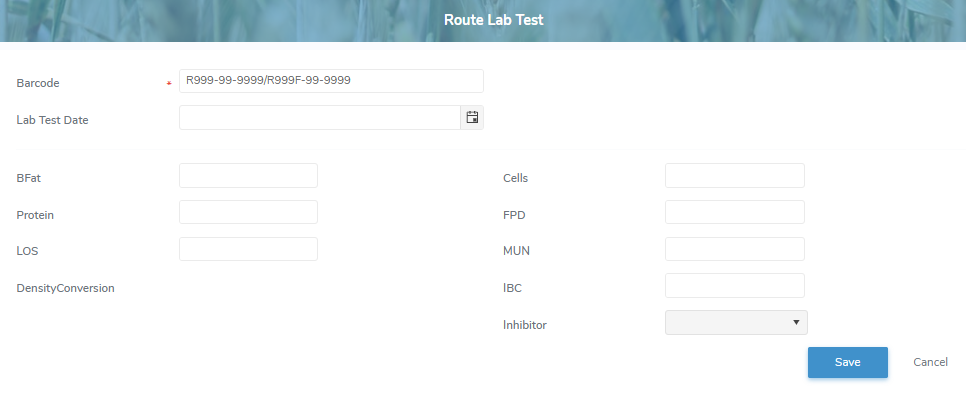
2)Complete the following details:
•Barcode*: Type the full barcode of the lab test.
 Tip: The associated route, effective date, and trailer number will automatically display after the barcode is entered.
•Route Code: Not editable. Displays the route code associated to the barcode.
•Effective Date: Not editable. Displays the effective date associated to the barcode.
•Trailer #: Not editable. Displays the effective date associated to the barcode.
•Lab Test Date: Type the date or click Calendar icon to select the date of the lab test.
Components
•BFat: Type the measure/value of the butter fat content.
•Protein: Type the measure/value of the protein content.
•LOS: Type the measure/value of lactose & other solids.
•DensityConversion: Not editable. Displays the density conversion value that is automatically calculated after the record is saved, based on component values such as butterfat, protein, and LOS.
Quality
•Cells: Type the measure/value of Somatic cell count.
•FPD: Type the measure/value of the Freezing Point Depression.
•MUN: Type the measure/value of the Milk Urea Nitrogen content.
•IBC: Type the measure/value of the Individual Bacteria Count.
•Inhibitor: Click the arrow and select whether the presence of an inhibitor is positive or negative..
3)Click Save. A message displays you have successfully saved a new route test result and the details display on the Route Test Search page.
– or –
Click Cancel to return to the Route Test Search page without saving changes.