Adding a new processor invoice parameter
To add a new processor invoice parameter from the Processor Invoice Settings page:
1)Click Add Parameters to open the Processor Invoice Settings page, and then complete the following: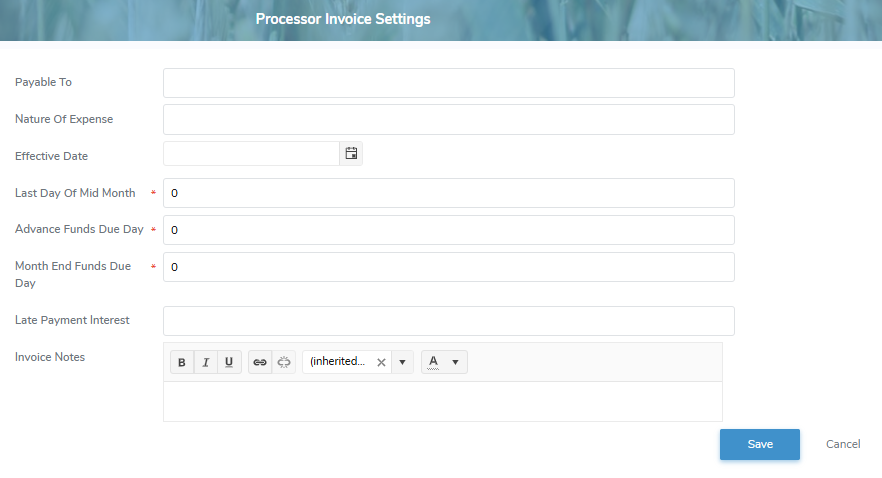
•Payable To: Type the name of the company that will receive the processor's payment.
•Nature of Expense: Type the nature of the expense (e.g., invoice.)
•Effective Date: Type the date or click Calendar icon to select the date the processor invoice setting takes effective.
 Note: The effective date cannot be earlier than the current period or changed to a period where an existing processor invoice setting already exists.
•Last Day Of Mid Month*: Type the day that marks the end of the processor's mid-month invoicing period.
•Advance Funds Due Day*: Type the day the processor's advance payment is due.
•Month End Funds Due Day*: Type the day the processor's month end payment is due.
•Late Payment Interest: Type the interest rate to be applied to a processor’s invoice if payment is received after the due date (displays on the invoice however there is no calculation done within the system.)
•Notes: Type any comments or details related to the processor invoice setting.
2)Click Save to save the process invoice setting and return to the Processor Invoice Settings page. The processor invoice setting will appear on the list.
– or –
Click Cancel to return to the Processor Invoice Settings page without saving the details.
Updating a processor invoice setting
To edit or update the details of a process invoice setting from the Processor Invoice Settings page:
1)Click Edit icon to open the Processor Invoice Settings page.
2)Edit or update the details of the process invoice setting as necessary (see Adding a processor invoice setting for more information.)
3)Click Save to save the process invoice setting and return to the Processor Invoice Settings page. The process invoice setting will appear on the list.
Removing a processor invoice setting
To remove a process invoice setting from the Processor Invoice Settings page:
1)Click Remove icon of the process invoice setting you want to remove.
2)Click OK to confirm you want to remove this type. The process invoice setting and its detailed information are deleted from the Processor Invoice Settings page.