To add a new plant from the Plant Search page:
1)Click Add New to open the Add New Plant page.
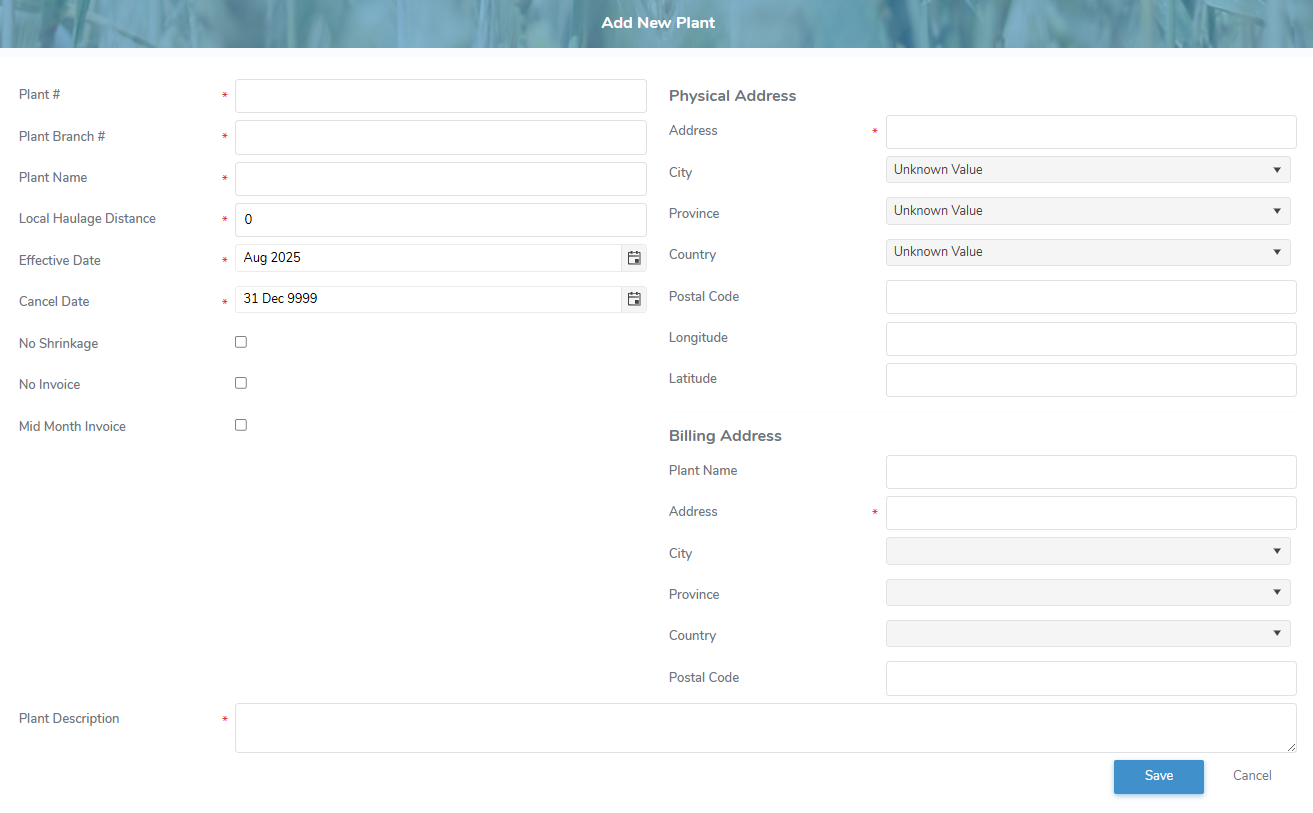
2)Complete the following details:
•Plant #*: Type the plant number.
•Plant Branch #*: Type the plant branch number.
•Plant Name*: Type the name of plant.
•Local Haulage Distance*: Type the distance in Kms.
•Effective Date*: Type the date or click Calendar icon to select the date the plant begins production.
•Cancel Date*: Type the date or click Calendar icon to select the date the plant ends production.
•No Shrinkage: Select the check box if there is no shrinkage calculation for the plant.
•No Invoice: Select the check box if invoices should not be generated for the plant.
•Mid Month Invoice: Select the check box if mid month invoices should be generated for the plant.
•Plant Description*: Type brief description of plant.
Physical Address
•Address*: Type the street address of the plant.
•City*: Type first letters of the city or click the arrow to display list of cities, and then select the city.
•Province*: Type first letters of the province or click the arrow to display list of provinces, and then select the province.
•Country*: Type first letter of the country or click the arrow to display list of the countries, and then select the country.
•Postal Code: Type full postal code of the plant.
•Longitude: Type full longitude (e.g., - 63.17636) of the plant.
•Latitude: Type full latitude (e.g., 46.18445) of the plant.
Billing Address
•Plant Name*: Type the name of plant.
•Address*: Type the street address of the plant.
•City*: Type first letters of the city or click the arrow to display list of cities, and then select the city.
•Province*: Type first letters of the province or click the arrow to display list of provinces, and then select the province.
•Country*: Type first letter of the country or click the arrow to display list of the countries, and then select the country.
•Postal Code: Type full postal code of the plant.
3)Click Save. The plant display on the Plant General page.
– or –
Click Cancel to return to the Plant Search page without saving changes.