Adding a new payment adjustment
To add a new payment adjustment from the Payment Adjustment Search page:
1)Click Add New to open the Add New Payment Adjustment page.
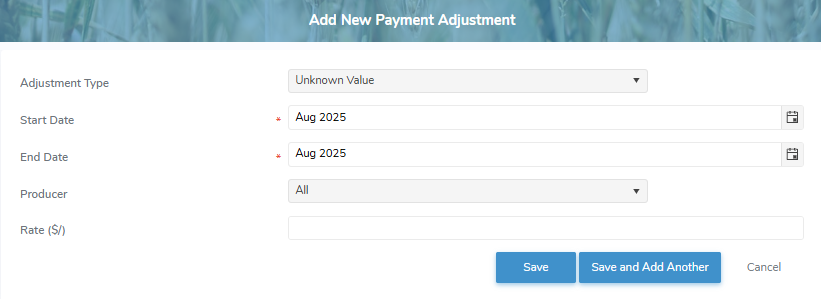
2)Complete the following details:
•Adjustment Type*: Type the first character or click the arrow to display list of adjustment types, then use the scroll bar to move up or down to find and select the desired adjustment type.
•Start Date*: Type the date or click Calendar icon to select the payment adjustment start date.
•End Date:* Type the date or click Calendar icon to select the payment adjustment end date.
•Producer: Type the first character or click the arrow to display list of producers, then use the scroll bar to move up or down to find and select a producer to apply the payment adjustment to.
 Note: If the payment adjustment applies to all producers, select All.
•Amount ($) / Rate ($/): Type the total dollar amount or a rate (per Hectolitres (HL) or per BFAT kg), depending on the payment adjustment type selected.
3)Click Save. The payment adjustment displays on the Payment Adjustment Search page.
– or –
Click Save and Add Another to save the payment adjustment record and open a new payment adjustment page.
– or –
Click Cancel to return to the Payment Adjustment Search page without saving changes.
Updating a payment adjustment
To edit or update a payment adjustment from the Payment Adjustment Search page:
1)Click Edit icon to open the Update Payment Adjustment page.
2)Edit or update the details of the payment adjustment as necessary (see Adding a new payment adjustment for more information.)
3)Click Save to save the payment adjustment and return to the Payment Adjustment Search page. The payment adjustment displays on the Payment Adjustment Search page.
– or –
Click Save and Add Another to save the payment adjustment record and open a new payment adjustment page.
– or –
Click Cancel to return to the Payment Adjustment Search page without saving changes.
Note: Payment adjustments can only be updated for current or future month end periods.
Removing a payment adjustment
To remove a payment adjustment from the Payment Adjustment Search page:
1)Click Remove icon of the payment adjustment you want to remove.
2)Click OK to confirm you want to remove this item. The payment adjustment and its detailed information are deleted from the Payment Adjustment Search page.
Note: Payment adjustments can only be removed for current (while quota transfers remain open) or future month end periods.