Adding a new notification
To add a new notification from the Notices page:
1)Click Add New to open the individual Add Notification page.
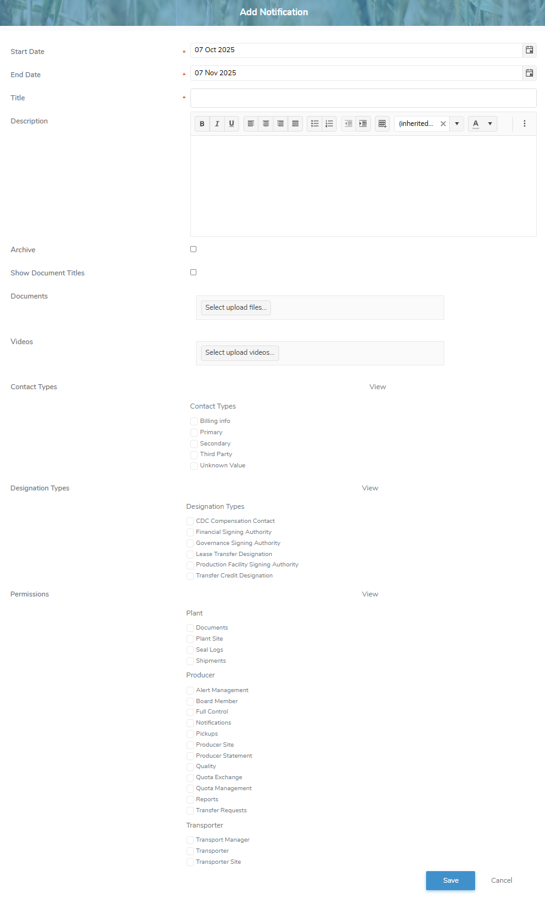
2)Complete the following details:
•Start Date*: Type a date or click Calendar icon to select a date for the notification to be active.
•End Date*: Type a date or click Calendar icon to select a date for the notification to end.
•Title*: Type a brief title for the notification.
•Description: Type a description of the notification.
•Archive: Select the check box to archive a notification.
 Note: Archived notifications are not visible or viewable.
•Show Document Titles: Select the check box to display the document name of attached documents.
•Documents: Click Select upload file to find and select the desired documents you wish to add.
•Videos: Click Select upload files to select the videos you wish to add.
The following determines which types (roles) and permissions see the notifications:
Note: If the check box is blank (not selected), then all contact types, designation types and/or permissions will be able to view the notification.
•Contact Types: Select the check box of one or more of the contact types who are able to view the notification.
•Designation Types: Select the check box of one or more of the designation types who are able to view the notification.
•Permissions: Select the check box of one or more of the permission types who are able to view the notification.
Note: To see the full list of permission types go to Reference Material - Permission Types.
3)Click Save to save the notification and return to the Notices page. The notification displays on the Notices page.
– or –
Click Cancel to return to the Notices page without saving the details.
Updating a notification
To edit or update the details of a notification from the Notices page:
1)Click Edit icon to open the Notices page.
2)Edit or update the details of the notification as necessary (see Adding a new notification for more information.)
3)Click Save to save the notification and return to the Notices page. The notification displays on the list.
Removing a notification
To remove a notification from the Notices page:
1)Click Remove icon of the notification you want to remove.
2)Click OK to confirm you want to remove this item. The notification and its detailed information are deleted from the Notices page.