Adding a processor access
To add a new processor access from the Manage Plants page:
1)Click Add New to open the Register New Portal User page.
2)Click the User Role arrow, and select Plant.
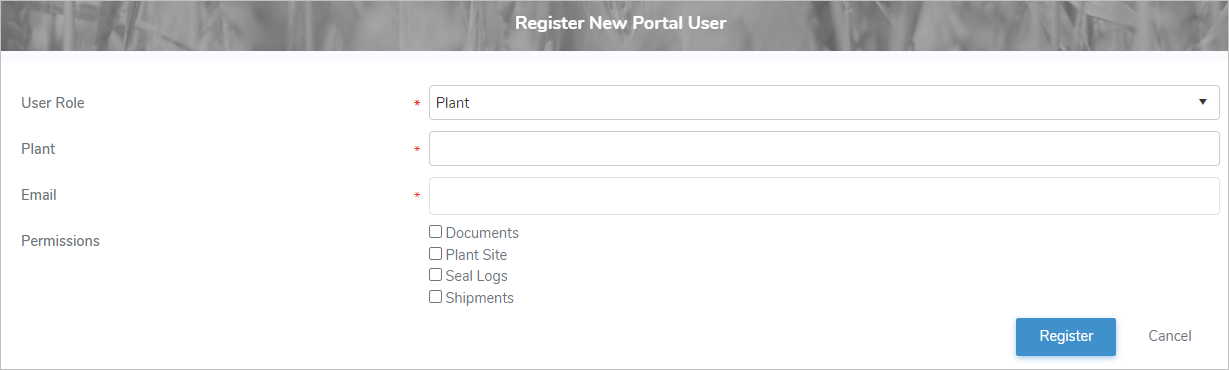
3)Complete the following details:
•User Role*: Plant must be selected.
•Plant*: Click the arrow to display a list of plants, then use the scroll bar to move up or down to find and select one or more desired plant(s) you want to add.
•Email*: Type the email address of the processor.
•Permissions: Select one or more check box(es) permissions that apply to the processor.
 Note: To see the full list of permission types go to Reference Material - Permission Types.
oDocuments: Select check box to grant access to the processor documents.
oPlant Site: Select check box to grant access to the processor portal.
oSeal Logs: Select check box to grant access to view the seal log information
oShipments: Select check box to grant access to view the shipment information.
Note: The Plant Site check box must be selected to give the processor access to the Processor Portal
4)Click Register to save the processor access and send the account registration to the processor email entered. The processor access displays on the Manage Plants page.
– or –
Click Cancel to return to the Manage Producers page without saving the details.
Updating a processor access
To edit or update the details of a processor access from the Manage Plants page:
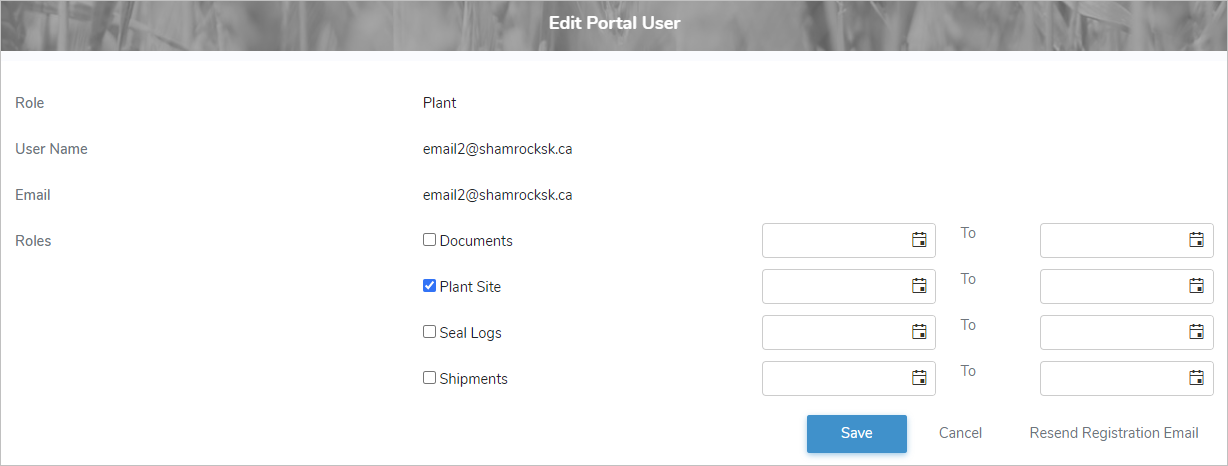
1)Click Edit icon to open the Edit Portal User page.
2)Edit or update the details of the processor access as necessary (see Adding a processor access for more information.)
Note: You may also select a start and/or end date that can be applied to each role.
3)Click Save to save the processor access and return to the Manage Plants page. The processor access displays on the Manage Plants page.
– or –
Click Cancel to return to the Manage Producers page without saving the details.
– or –
Click Resend Registration Email to send an email to the processor contact to initiate their account.
Removing a processor access
To remove a processor access from the Manage Plants page:
1)Click Remove icon of the processor access you want to remove.
2)Click OK to confirm you want to remove this user. The processor and its detailed information are deleted from the Manage Plants page.