 Note: To manage quota bid or offer requests (e.g., add, edit, or remove) and to receive notifications, a contact must be assigned as a Financial Signing Authority designation under Contacts (see Editing designations for more information.) Producers cannot initiate transfer requests to or from themselves.
To add a new bid or offer to the Quota Exchange page:
1)Click Add Bid on the Current Exchange screen to open the Quota Exchange Bid page.
2)Click the Bid/Offer arrow and select the type of bid or offer (i.e., Buy, Sell, Sell All) you wish to add.
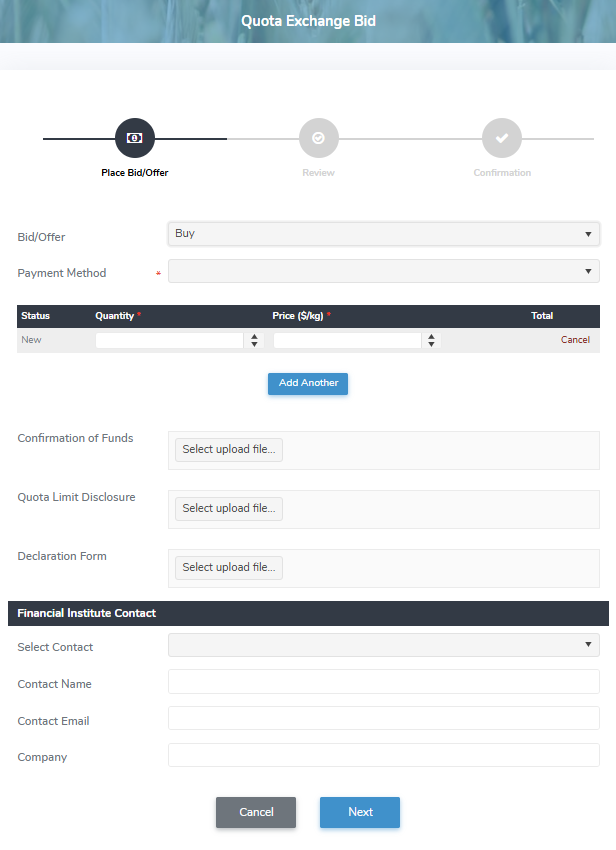
3)Complete the following mandatory fields:
•Bid/Offer*: Click the arrow to find and select the desired type of bid or offer you wish to proceed with (i.e., Buy, Sell, or Sell All).
•Payment Method*: Click the arrow and select the payment method you wish to use (i.e., Electronic Funds Transfer (EFT) or cheque)
4)Compete the following bid or offer details:
•Status: Not editable. Defaults to New.
•Quantity*: Type the total number of quota (kgs) to be sold or purchased.
•Price ($/kg)*: Type the total dollar amount for one kilogram of the quota being sold or purchased.
•Total: Not editable. Automatically calculates the total price (Quantity x Price ($/kg))
 Tip: (Optional) Click Add Another to add another row or Cancel to remove the details.
5)Upload supporting documentation which is provided by the producer.
If bid or offer selected is to Buy then the following documents must be uploaded:
•Confirmation of Funds: Click Select upload file to find and select the desired file you want to upload.
Note: All offers to purchase must be accompanied by a letter from a financial institution or lender confirming funds.
•Quota Limit Disclosure: Click Select upload file to find and select the desired file you want to upload.
Note: All offers to purchase must be accompanied by a quota limit disclosure.
•Declaration Form: Click Select upload file to select the file you want to upload.
Note: All offers to purchase must be accompanied by a declaration form.
If bid or offer selected is to Sell or Sell All then the following document must be uploaded:
•Approval to Sell: Click Select upload file to select the file you want to upload.
Note: All offers to sell must be accompanied by a letter of consent from each lender or other secured party who has security interest in the quota being offered for sale.
6)Complete the Financial Institute Contact information:
•Select Contact: Click the arrow and select name of the person who is the Financial Institute Contact (if already set up within the producer contacts).
•Contact Name: Type the name of the person if it is different from the selected contact.
•Contact Email: Type the email address of the person who is the Financial Institute Contact.
•Company: Type the company name of the person who is the Financial Institute Contact.
7)Click Next to review the details of the quota bid or offer.
8)Select the Confirm check box to confirm the details have been verified and acknowledge that transactions, adjustments, and results are administered in accordance with Milk rules and policies. You must confirm you are a person authorized to place a bid on the Quota Exchange on behalf of this farm.
9)Click Submit to submit your bid. Your confirmation number for the bid or offer request displays as well as a message that your bid/offer has been successfully submitted..
Note: An email notification is sent to the designated Financial Signing Authorities as well as all contacts subscribed to Quota Exchange alerts.
– or –
Click Previous then Cancel to return to the Quota Exchange page without saving changes.
10)Click Return to navigate to the Quota Exchange page. Your bid or offer request appears on the Current Exchange screen.
Note: At the bottom of the Current Exchange screen, the name of who and when the bid or offer was created displays as well as who and when the bid or offer was last updated.