 Note: To manage transfer requests (e.g., add, approve, or cancel) and to receive notifications, a contact must be assigned as a Lease Transfer Designation under Contacts (see Editing designations for more information.) Producers cannot initiate transfer requests to or from themselves.
Adding a new lease transfer request
To add a new lease transfer request to the Lease Requests page:
1)Click Add Transfer Request on the Transfer Requests screen to open the Lease Transfer Request page.
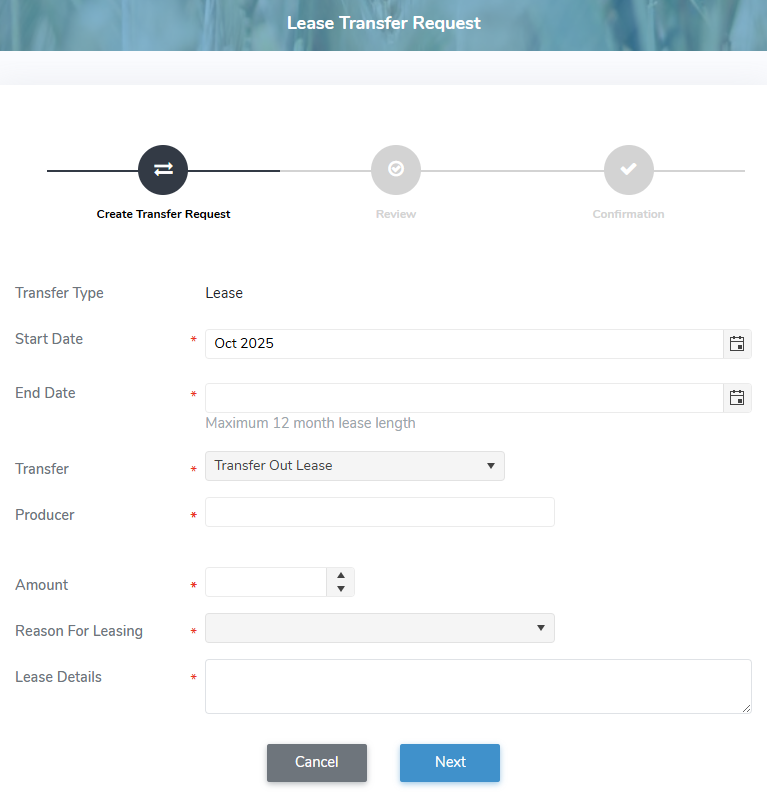
2)Complete the following mandatory fields:
•Transfer Type: Not editable. Displays the transfer type for Lease.
•Start Date*: Type the date or click Calendar icon to select the start month for the lease transfer.
•End Date*: Type the date or click Calendar icon to select the end month for the lease transfer.
Note: The length of the lease cannot exceed the number of months as indicated.
•Transfer*: Click the arrow to find and select the desired transfer you wish to proceed with (i.e., Transfer Out Lease or Transfer in Lease).
•Producer*: Type the first character or click the arrow to display list of producers, then use the scroll bar to move up or down to find and select a producer involved in the transfer request.
•Amount*: Type the total amount being transferred in or out.
•Reason For Leasing*: Click the arrow to find and select the desired reason for the lease (i.e., Catastrophe Situation, New Entrant to the industry, or Renovations/Construction of Facilities.)
•Lease Details*: Type details that support the reason for leasing.
3)Click Next to review the details of the transfer.
4)Select the Confirm check box to confirm the details have been verified and acknowledged and that requests are administered in accordance with Milk rules and policies. You must confirm you are a person authorized to submit transfer request on behalf of this farm.
5)Click Submit to submit your transfer. Your confirmation number for the lease transfer request displays.
Note: An email notification is sent to the designated Financial Signing Authorities and the Lease Transfer Designation as well as all contacts subscribed to Transfer Request alerts.
– or –
Click Previous then Return to revert back to the Lease Requests page without saving changes.
6)Click Return to navigate to the Lease Requests page. Your transfer request appears on the Transfer Requests screen with a status of Awaiting Signature.
Note: You can cancel the transfer request before the other producer acknowledges it. Once the receiving producer approves the lease transfer, the status changes to Awaiting Approval, and no further changes can be made. If the Quota Administrator grants final approval, the status changes to Approved.
Approving a lease transfer request
Note: For a transfer request to proceed to the Quota Administrator for final approval, the receiving producer listed as From or To must approve the request, either online or by contacting the Quota Administrator to approve it on their behalf.
To approve the details of a lease transfer request from the Lease Requests page:
1)Click Edit icon to open the Lease Transfer Request page and review the transfer details. To approve:
•Start Date*: Type the date or click Calendar icon to select the start month for the lease transfer.
•End Date*: Type the date or click Calendar icon to select the end month for the lease transfer.
•Quota Limit Disclosure: Click Select upload file to find and select the desired file you want to upload.
Note: All lease purchases must be accompanied by a quota limit disclosure.
•Declaration Form: Click Select upload file to select the file you want to upload.
Note: All lease purchases must be accompanied by a declaration form.
•Approve: Click the check box to confirm approval of the transfer request.
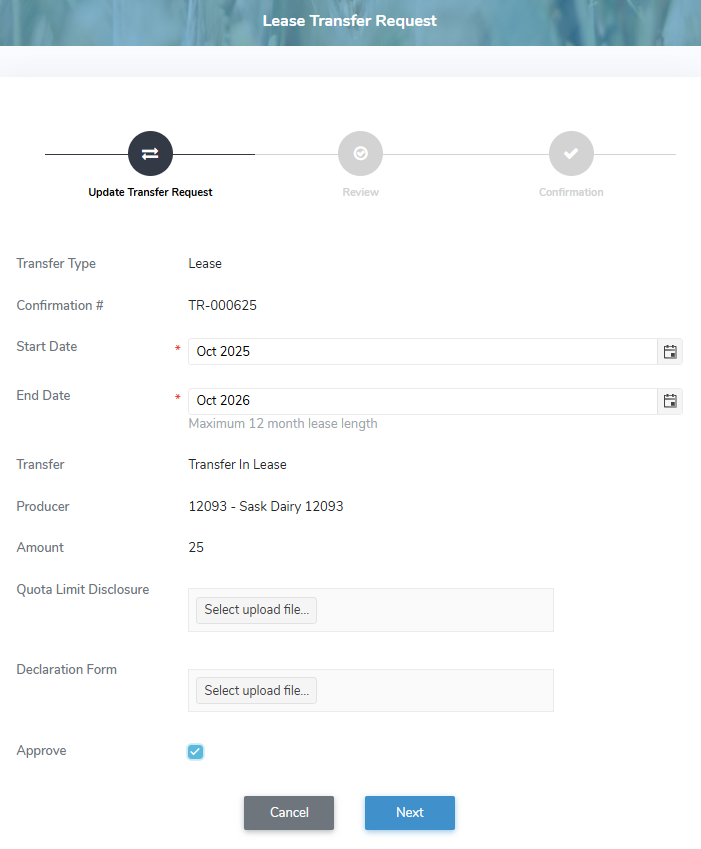
2)Click Next to review the details of the transfer.
3)Select the Confirm check box to confirm the details have been verified and acknowledged and that requests are administered in accordance with Milk rules and policies. You must confirm you are a person authorized to submit transfer request on behalf of this farm.
4)Click Submit to submit your transfer request. Your confirmation number for the lease transfer request displays and the transfer request is sent to the Quota Administrator for final approval.
Note: An email notification is sent to the designated Financial Signing Authorities and the Lease Transfer Designation as well as all contacts subscribed to Transfer Request alerts.
– or –
Click Previous then Cancel to revert back to the Lease Requests page without saving changes.
5)Click Return to navigate to the Lease Requests page. Your transfer request appears in the Transfer Requests screen with a status of Awaiting Approval.
Note: Your transfer request will appear on the Transfer Requests screen with a status of Awaiting Signature and no further changes can be made. If the Quota Administrator grants final approval, the status changes to Approved.
Cancelling a lease transfer request
Note: If one of the producer listed as From or To cancels the request, the transfer request and its details are immediately removed from the Transfer Requests screen.
To cancel the details of a lease transfer request from the Lease Requests page:
1)Click Edit icon to open the Lease Transfer Request page and review the transfer details. To cancel:
•Cancel: Click the check box to cancel the transfer request.
•Cancel Reason: Type a reason for the cancellation of the transfer request.
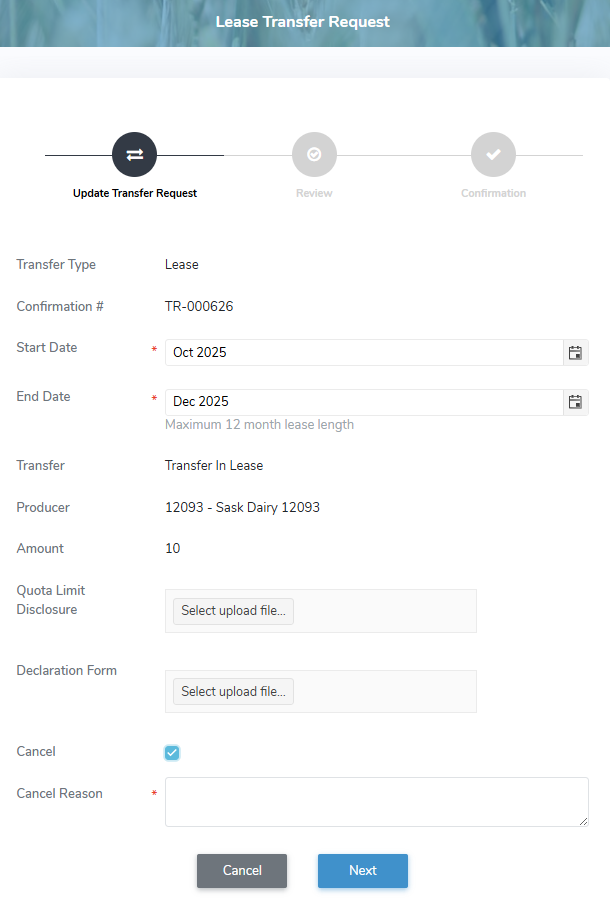
2)Click Next to review the details of the transfer.
3)Select the Confirm check box to confirm the details have been verified and acknowledged and that requests are administered in accordance with Milk rules and policies. You must confirm you are a person authorized to submit transfer request on behalf of this farm.
4)Click Submit to submit your transfer request. The transfer request is cancelled and its details are removed.
Note: An email notification is sent to the designated Financial Signing Authorities and the Lease Transfer Designation as well as all contacts subscribed to Transfer Request alerts.
– or –
Click Previous then Cancel to revert back to the Lease Requests page without saving changes.
5)Click Return to navigate to the Lease Requests page. The transfer request and its details are removed from the Transfer Requests screen for both producers.