To add a new trailer from the Trailers & Compartments page:
1)Click Add New to open the Add Trailer page.
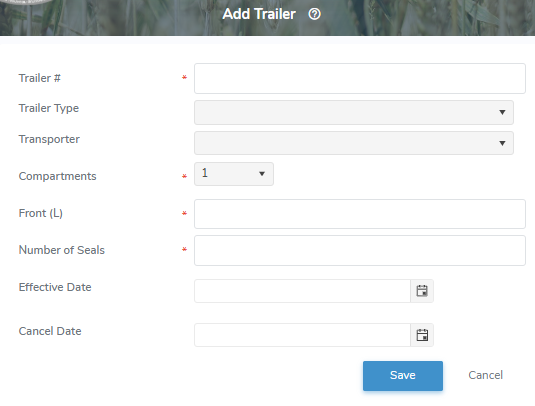
2)Complete the following mandatory details:
•Trailer #*: Type assigned number of the trailer.
•Trailer Type: Click the arrow to display list of trailers, and then select the trailer type.
•Transporter: Click the arrow to display list of transporters, and then select the transporter for the trailer.
•Compartments*: Click the Compartment arrow to select the number of compartments in the trailer.
•Front (L)*: Type number of litres of front compartment (main compartment if only one).
If more than one compartment is selected, then you must complete the following:
•Back (L)*: Type total number of litres contained in the back compartment.
•Number of Seals*: Type total number of seals for trailer and compartments.
•Effective Date: Type date or click Calendar icon to select date that the trailer and compartments became operational.
•Cancel Date: Type date or click Calendar icon to select date that the trailer and compartments are discontinued.
3)Click Save. A message displays you have successfully saved a trailer and the trailer details display on the Trailers & Compartments page.
– or –
Click Cancel to return to the Trailers & Compartments page without saving changes.
 Note: If you cancel a message asking you to confirm that you want to leave then the data you have entered may not be saved. Click Leave Page to go return to the Trailers & Compartments page or click Cancel to remain on the Add Trailer page.
If saved the screen proceeds to the Trailer page, where you can:
4)Click Edit to make changes to the trailer details (see Updating trailer details for more information);
– or –
Click Return to return to the Trailers & Compartments page.