Adding a new pricing agreement
To add a new pricing agreement from the Pricing Agreement page:
1)Click Add New to open the Add Pricing Agreement page.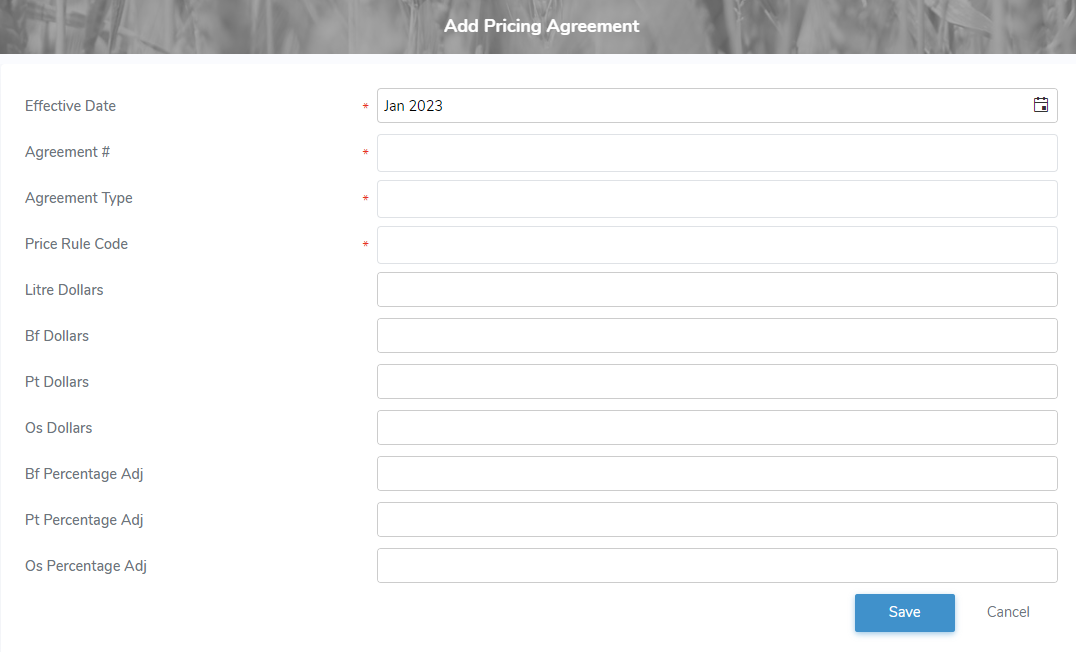
2)Complete the following details:
•Effective Date*: Type the date or click Calendar icon to select the date for the pricing agreement take effect.
•Agreement #*: Type the pricing agreement number.
•Agreement Type*: Type the pricing agreement type.
•Price Rule Code*: Type the pricing agreement price rule code.
•Litre Dollars: Type the pricing agreement litre dollar rate.
•Bf Dollars: Type the pricing agreement BFat dollar rate.
•Pt Dollars: Type the pricing agreement Protein dollar rate.
•Os Dollars: Type the pricing agreement LOS dollar rate.
•Bf Percentage Adj: Type the pricing agreement BFat adjustment percentage.
•Pt Percentage Adj: Type the pricing agreement Protein adjustment percentage.
•Os Percentage Adj: Type the pricing agreement LOS adjustment percentage.
3)Click Save. The pricing agreement displays on the Pricing Agreement page.
– or –
Click Cancel to return to the Pricing Agreement page without saving changes.
Updating a pricing agreement
To edit or update a pricing agreement from the Pricing Agreement page:
1)Click Edit icon to open the Update Pricing Agreement page.
2)Edit or update the details of the pricing agreement as necessary (see Adding a new pricing agreement for more information.)
3)Click Save to save the pricing agreement and return to the Pricing Agreement page. The pricing agreement displays on the Pricing Agreement page.
– or –
Click Cancel to return to the Pricing Agreement page without saving changes.
Removing a pricing agreement
To remove a pricing agreement from the Pricing Agreement page:
1)Click Remove icon of the pricing agreement you want to remove.
2)Click OK to confirm you want to remove this item. The pricing agreement and its detailed information are deleted from the Pricing Agreement page.