By specifying conditions, you can create custom filters that narrow down the data in the exact way that you want.
 Tip: You can filter and sort each column to make the information easier to understand or work with. Sorting arranges the data alphabetically or numerically in ascending or descending order by clicking on the column name. A filter hides (filters out) unwanted records, displaying only the records you want to see by clicking on the filter icon next to the column name. The filter dialog provides you with multiple options to enter criteria and apply filters.
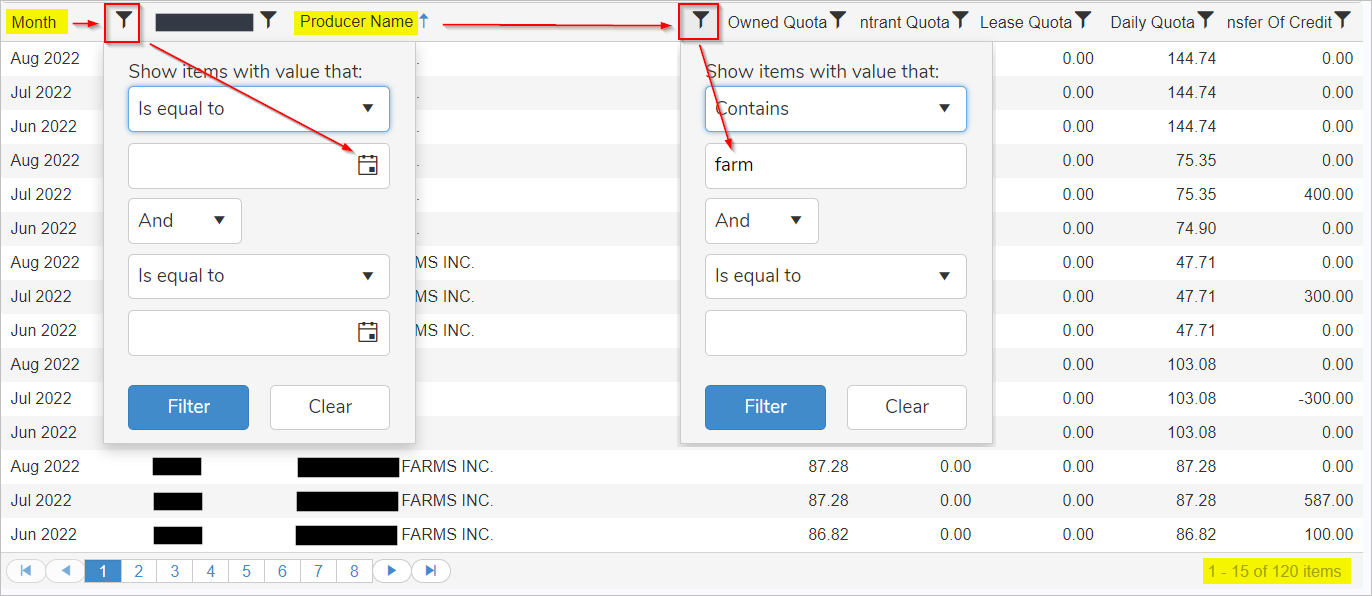
To filter producer quota columns from the Producer Quota Search page:
1)Click the Filter icon to the right of a column name to open the filtering dialog.
2)Under the Show items with value that: click the down arrow to display and select a condition that you want to filter the column by. For example:
•Is equal to |
•Does not contain |
•Is empty |
•Is not equal to |
•Ends with |
•Is not empty |
•Starts with |
•Is null |
•Has no value |
•Contains |
•Is not null |
•Has value |
3)Type the value of the criteria you want to filter on:
•Month: Type or click Calendar icon to select the month and year.
– or –
•Column Name: Type the value of the text or number contained within the column.
4)Optional. Click the And button to combine criteria (this is, two or more criteria that must both be met), or the Or button to require only one of the multiple conditions to be met, and then repeat steps 1 and 2 for the next two fields.
5)Click Filter to display a list of producer credit/quota matching your criteria.
– or –
Click Clear to clear the criteria and start your search again.
 Note: The status bar in the bottom right of the table tells you how many records are displayed. If no matches, then a message displays no records available.