Adding a new document
To add a new document from the Documents page:
1)Click Add New to open the Add Document page.
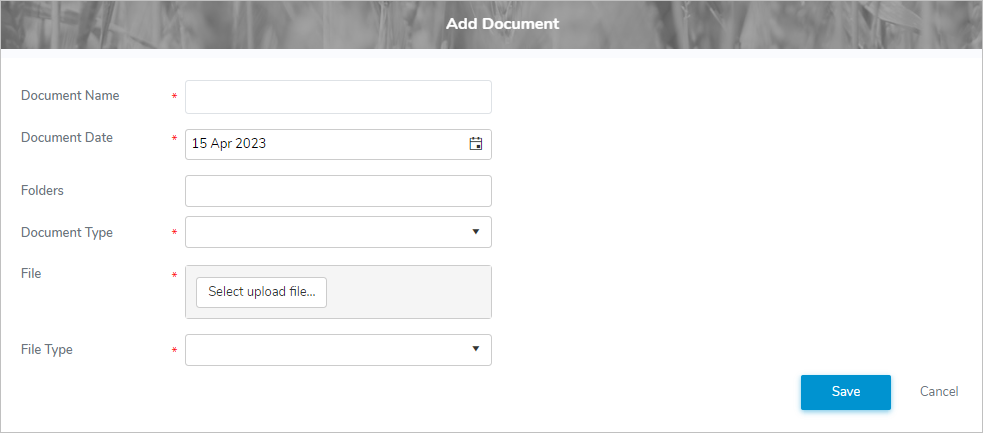
2)Complete the following details:
•Document Name*: Type name for the document.
•Document Date*: Type a date or click Calendar icon to select a date for the document.
•Folder: Type the first letter or click the arrow to display and select a folder.
•Document Type*: Type the first letter or click the arrow to display list of document types, then use the scroll bar to move up or down to find and select the desired document type.
•File*: Click Select upload file to find and select the desired document file you want to upload.
•File Type*: Type the first letter or click the arrow to display list of file types, then use the scroll bar to move up or down to find and select the desired file type of the document.
3)Click Save to save the document and return to the Documents page. The document displays on the Documents page.
– or –
Click Cancel to return to the Documents page without saving the details.
Viewing a document
To view the details of a document from the Documents page:
1)Click View icon to open the Document page and view the details of the document.
2)Click the File icon to open and download the document.
3)Click Return to return to the Document page.
Downloading a document
To download a document from the Documents page:
•Click Download icon of the document you want to download.
 Tip: By default, most downloaded files open in the Internet browser currently in use, usually in a new window or tab.